

SAML SSO
Table of Contents
- Prerequisites
- Step 1. Get Bright Service Provider (SP) Details
- Step 2. Configure Your Identity Provider
- Step 3. Configure SAML in Bright
- Integration Usage
- User Provisioning
- Single Logout (SLO)
- User Login Flow
- FAQ
To simplify user access to Bright, you can configure Single Sign-On (SSO) integration between Bright and your Identity Provider (IdP) using the SAML 2.0 protocol. Bright works with any SAML 2.0-compliant Identity Provider, including Microsoft Azure AD / Entra ID, Okta, AD FS, PingFederate, OneLogin, and others.
This guide explains how to connect a generic SAML Identity Provider to Bright, configure user provisioning, and enable Single Logout (SLO).
Prerequisites
Before you begin, make sure you have:
- Organization administrator permissions in Bright (the
auth-providersscope) and the SSO feature enabled for your Bright subscription. - Administrator access to your Identity Provider.
- One of the following from your Identity Provider:
- The IdP Metadata URL (recommended)
- The IdP metadata XML file
- The manual values: IdP Entity ID, SSO URL, and X.509 signing certificate, plus the Single Logout URL if you plan to use Single Logout
- Optional, for SCIM provisioning: a valid organization API key with the
scimscope.
Step 1. Get Bright Service Provider (SP) Details
Before configuring your Identity Provider, collect the Bright Service Provider details.
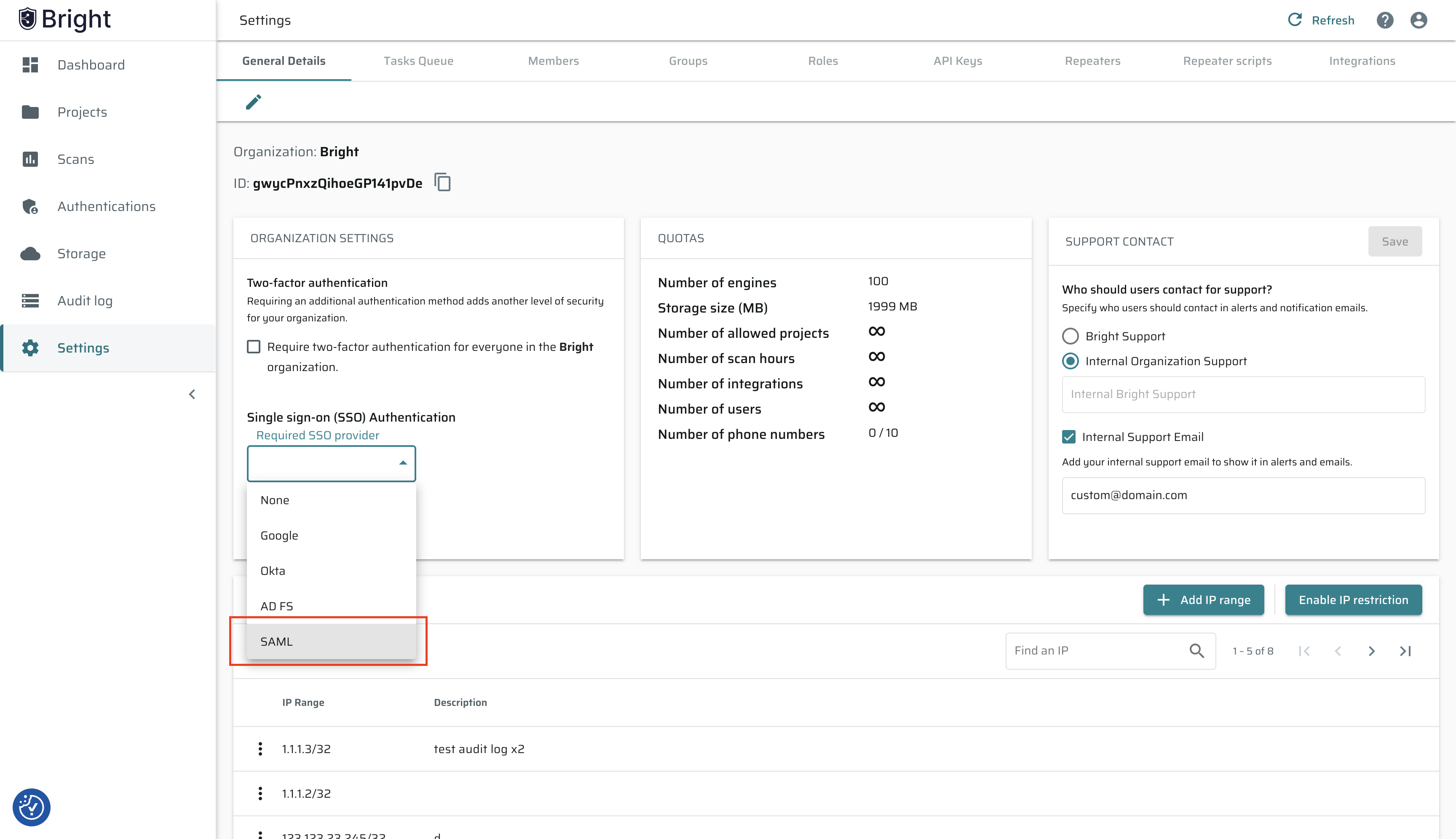
Open the Bright app and do the following:
- Log in to the Bright app.
- In the left pane, select Settings.
- In the Single sign on (SSO) Authentication list, select SAML, and then click Connect.
Option A: Copy the Values
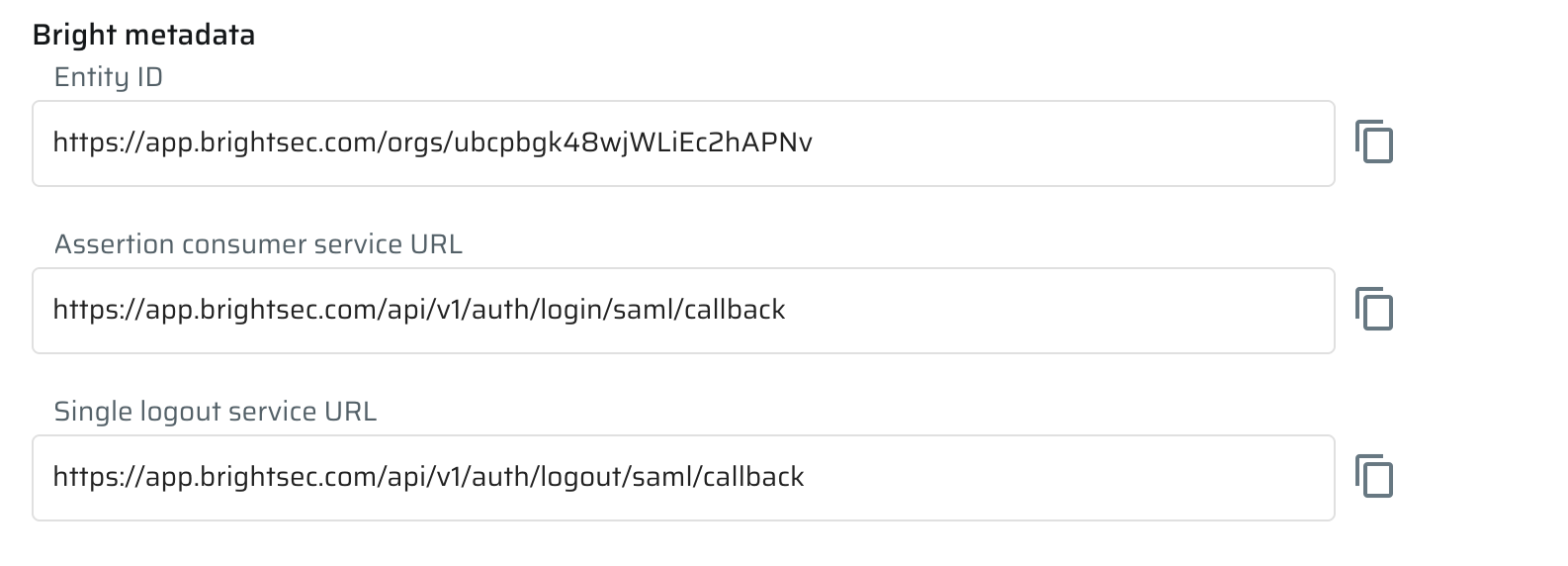
On the SAML authentication page, find the Bright metadata section. It contains the values your Identity Provider needs, each with a copy button:
| Field | Description |
|---|---|
| Entity ID | Your Bright organization's unique identifier |
| Assertion consumer service URL | Where your IdP sends SAML responses (HTTP-POST binding) |
| Single logout service URL | Where your IdP sends Single Logout requests and responses (HTTP-Redirect binding) |
Option B: Export the Files
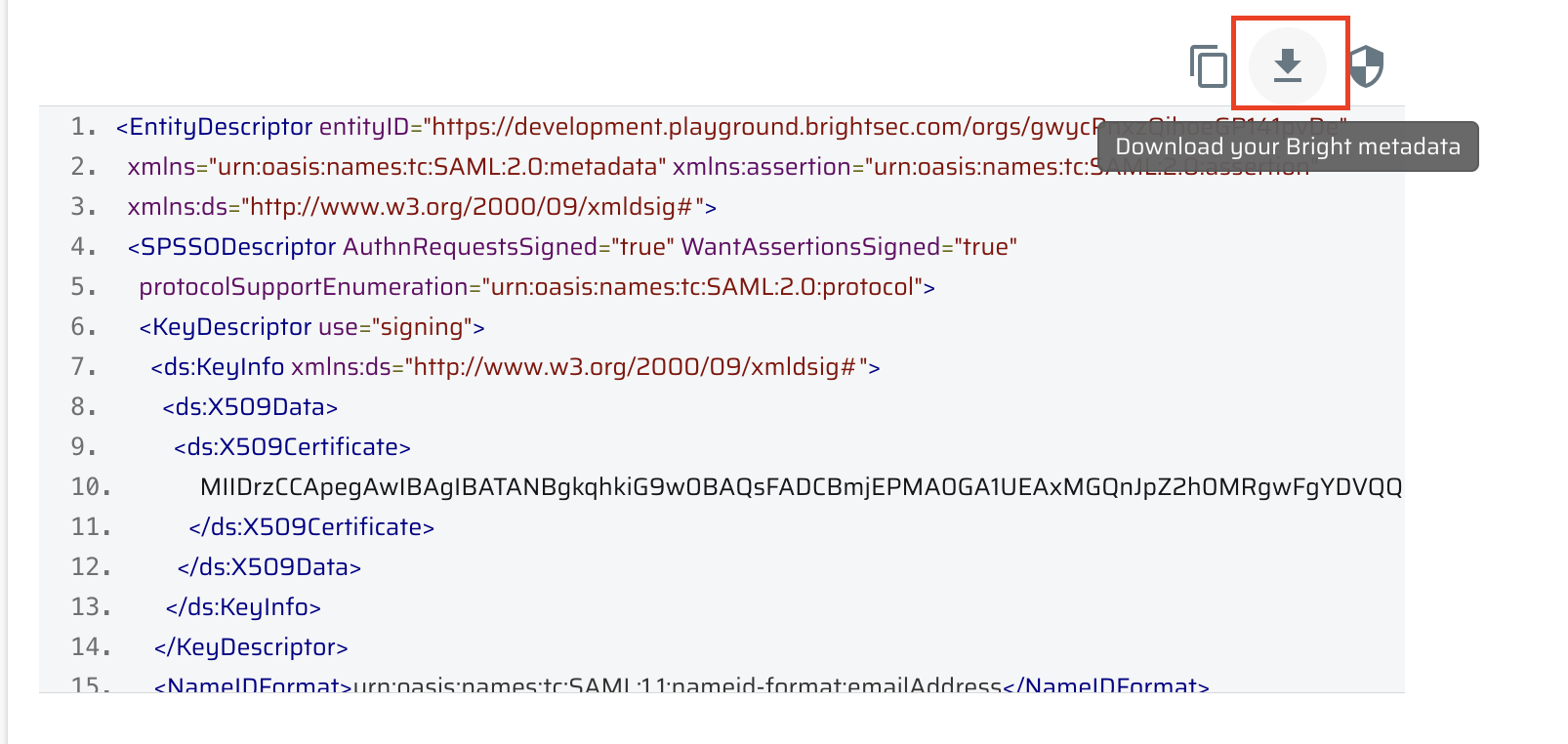
Instead of copying the values one by one, you can export them as files using the buttons above the metadata XML preview:
- Download your Bright metadata - Downloads the
metadata.xmlfile with the full Bright SP metadata. - Download your Bright signing certificate - Downloads the
signing_certificate.cerfile with the Bright signing certificate.
Note: Use
signing_certificate.ceronly if you would like to use Bright certificates in addition to IdP certificates for more security. Some Identity Providers restrict the use of Service Provider certificates.
Keep this page open. You will return to it in Step 3.
Step 2. Configure Your Identity Provider
Create a new SAML application in your Identity Provider, such as Azure or Okta, using the Bright SP details collected in Step 1.
Import the Bright Metadata
The easiest option is to upload the exported metadata.xml file to your Identity Provider. Most IdPs, including Azure AD, Okta, and AD FS, can create the SAML application configuration directly from an uploaded SP metadata file.

If your Identity Provider does not support metadata upload, fill in the fields manually:
| IdP setting | Value |
|---|---|
| ACS URL / Reply URL | Bright Assertion consumer service URL |
| Entity ID / Audience | Bright Entity ID |
| Name ID Format | Email address |
| Single Logout URL | Bright Single logout service URL (optional, required for SLO) |
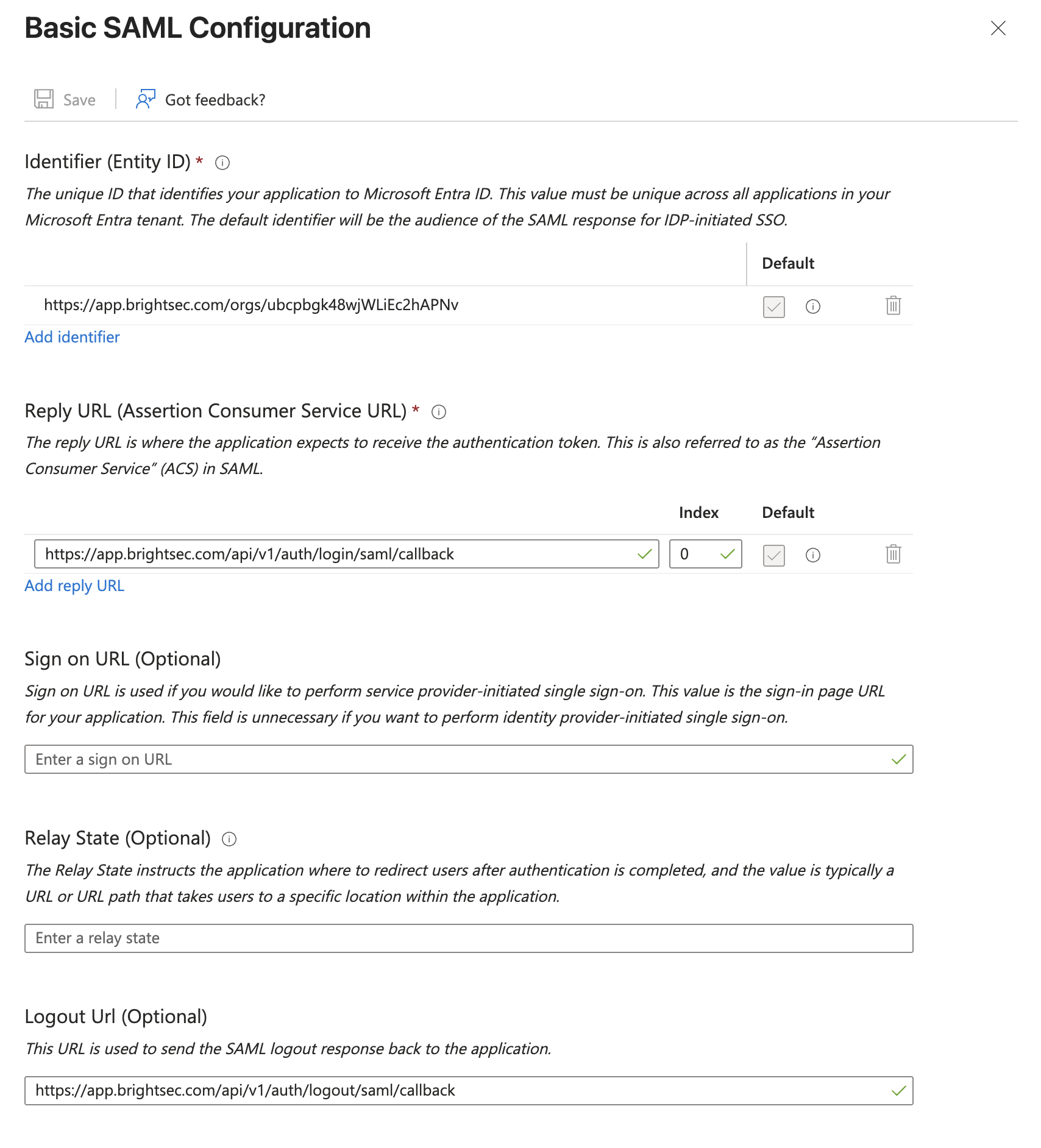
Important: Bright uses the SAML NameID as the user's email address and unique identifier. Make sure your Identity Provider sends the user's email as the NameID. Otherwise, users will not be matched to their Bright accounts.
Trusted Certificates
Bright always signs its SAML authentication and logout requests and requires the assertions from your Identity Provider to be signed as well. Certificates must therefore be exchanged in both directions.
Bright to IdP
Upload the exported signing_certificate.cer file to your Identity Provider as a trusted verification or request-signing certificate. Your IdP uses it to verify the signature of the AuthnRequests and LogoutRequests coming from Bright.
The certificate:
- Is generated by Bright specifically for your organization
- Uses RSA 2048 and SHA-256
- Is valid for 10 years
Note: Some Identity Providers restrict the use of Service Provider certificates and may prevent features such as Identity Provider-initiated SSO.
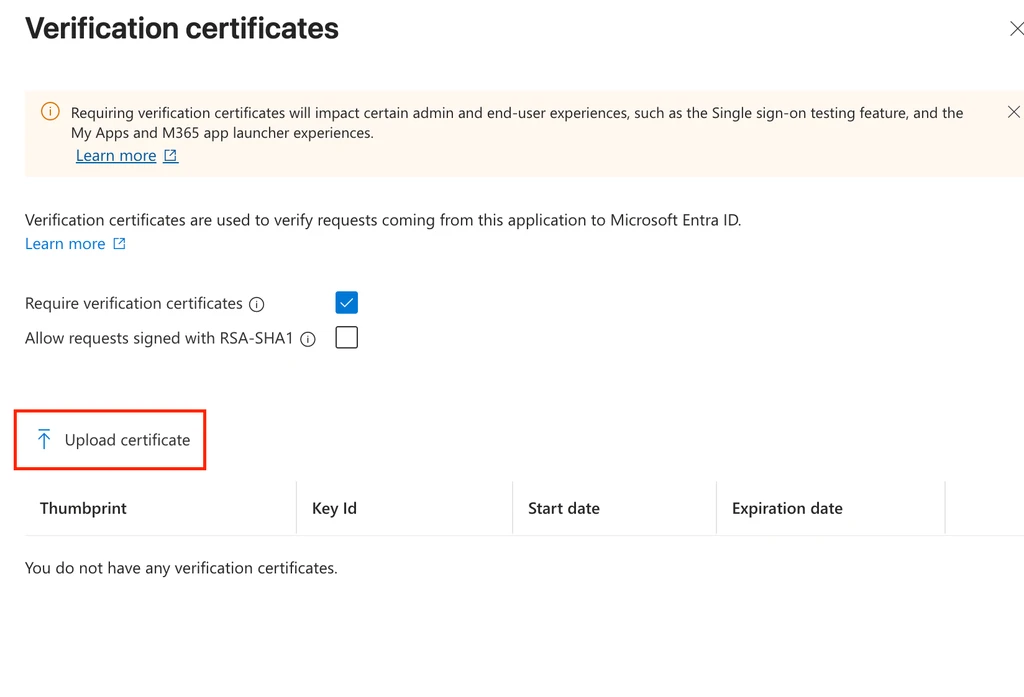
IdP to Bright
Bright uses your Identity Provider's X.509 signing certificate to verify the signature of the SAML assertions. The certificate is taken from the IdP metadata automatically or pasted manually in Step 3.
Note: Bright trusts a single IdP signing certificate at a time. If your IdP metadata contains several signing certificates, Bright uses the first one. When you rotate the certificate on the IdP side, update the Bright configuration. Alternatively, use the Metadata URL option so Bright reads the current certificate from your metadata.
Attributes Mapping
Make sure your Identity Provider sends the user's first and last name as SAML attributes. By default, Bright looks for the following attributes:
| SAML attribute | Bright field | Default attribute name |
|---|---|---|
| First Name | Given Name | firstName |
| Last Name | Family Name | lastName |
| Email (NameID) | Taken from the SAML NameID, not from an attribute |
Example claims configuration for Azure AD:
| Claim name | Type | Value |
|---|---|---|
email | SAML | user.mail |
firstName | SAML | user.givenname |
lastName | SAML | user.surname |
name | SAML | user.principalname |
Note: The Namespace field must be blank to successfully complete the integration.
If your Identity Provider uses different attribute names, such as givenName and surname, and you cannot change them on the IdP side, you can tell Bright which names to use. See Custom attributes mapping in Step 3.
Step 3. Configure SAML in Bright
Return to the SAML authentication page in Bright. At the top of the form, select one of the two configuration types.
Option A: By Metadata
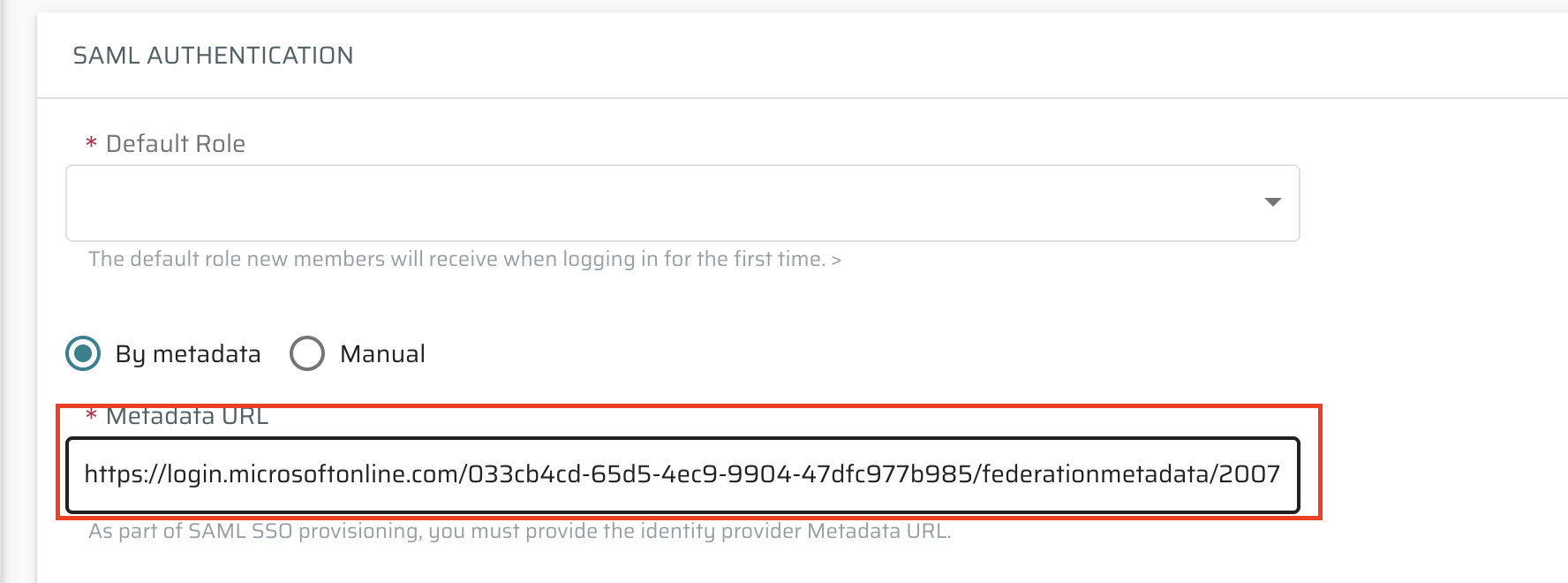
- Select By metadata.
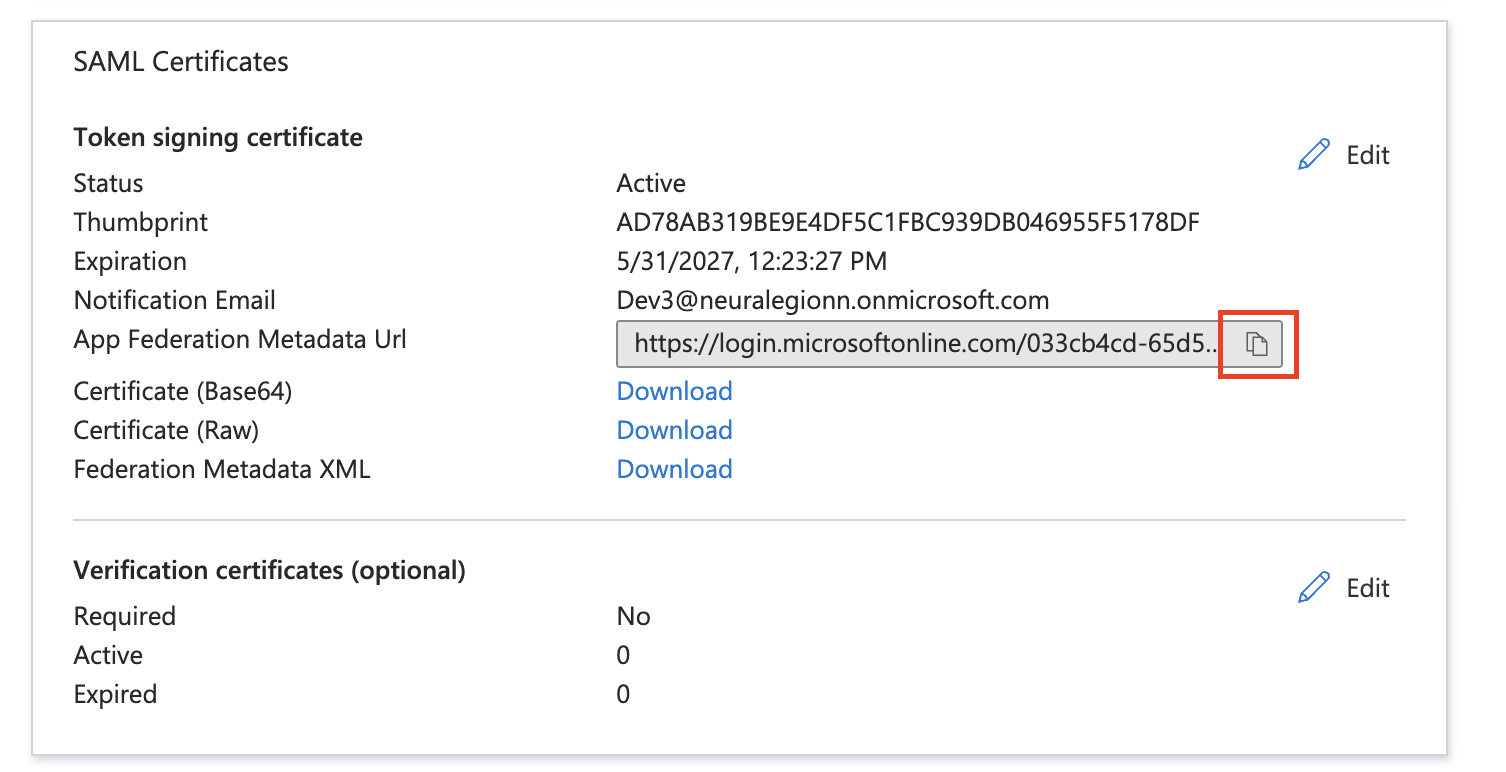
- In the Metadata URL field, paste the metadata URL you copied from your Identity Provider.
Bright reads the Entity ID, SSO URL, signing certificate, and Single Logout URL directly from your IdP metadata and keeps them up to date. When you rotate a certificate or change an endpoint on the IdP side, no changes are needed in Bright.
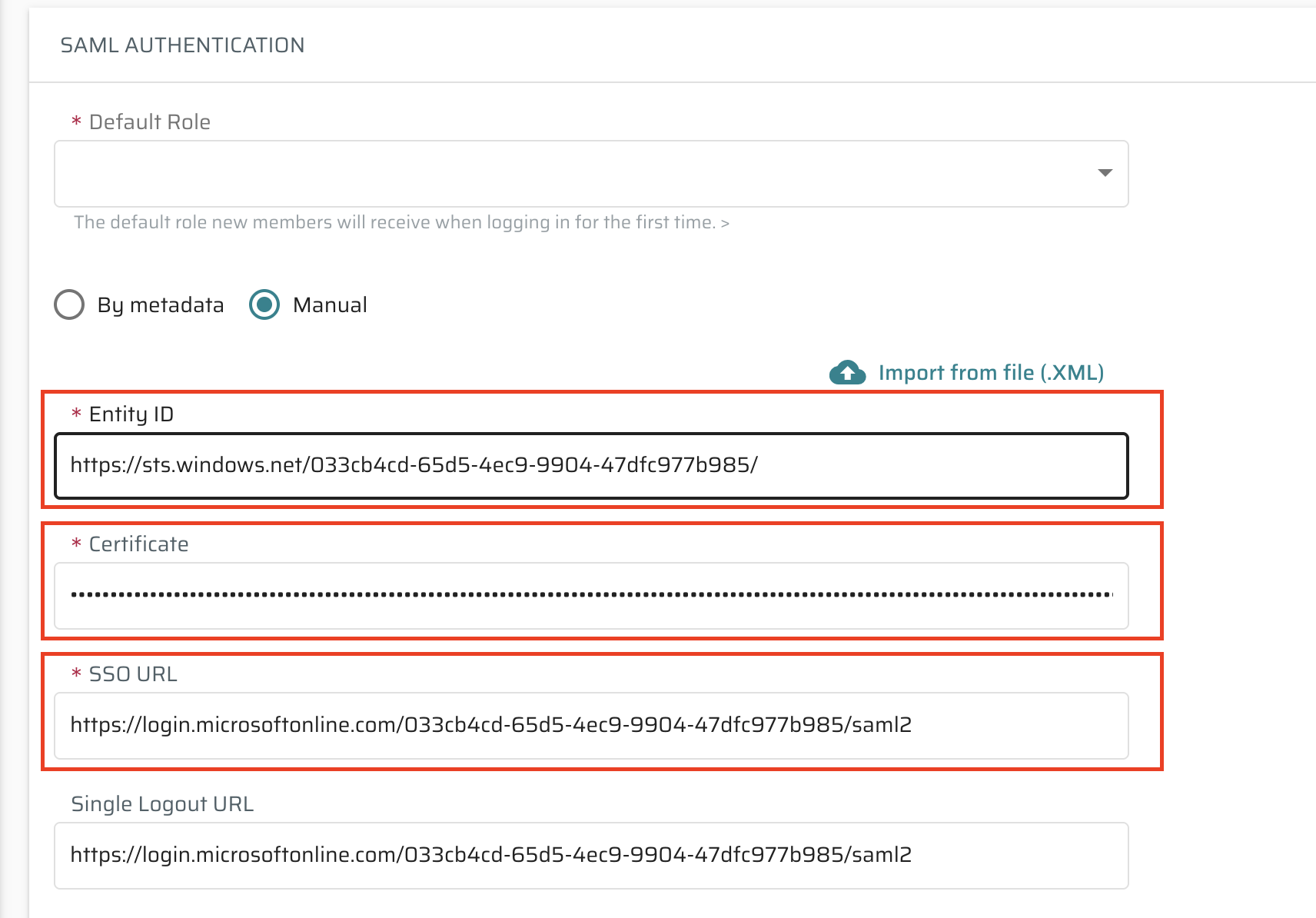
Option B: Manual
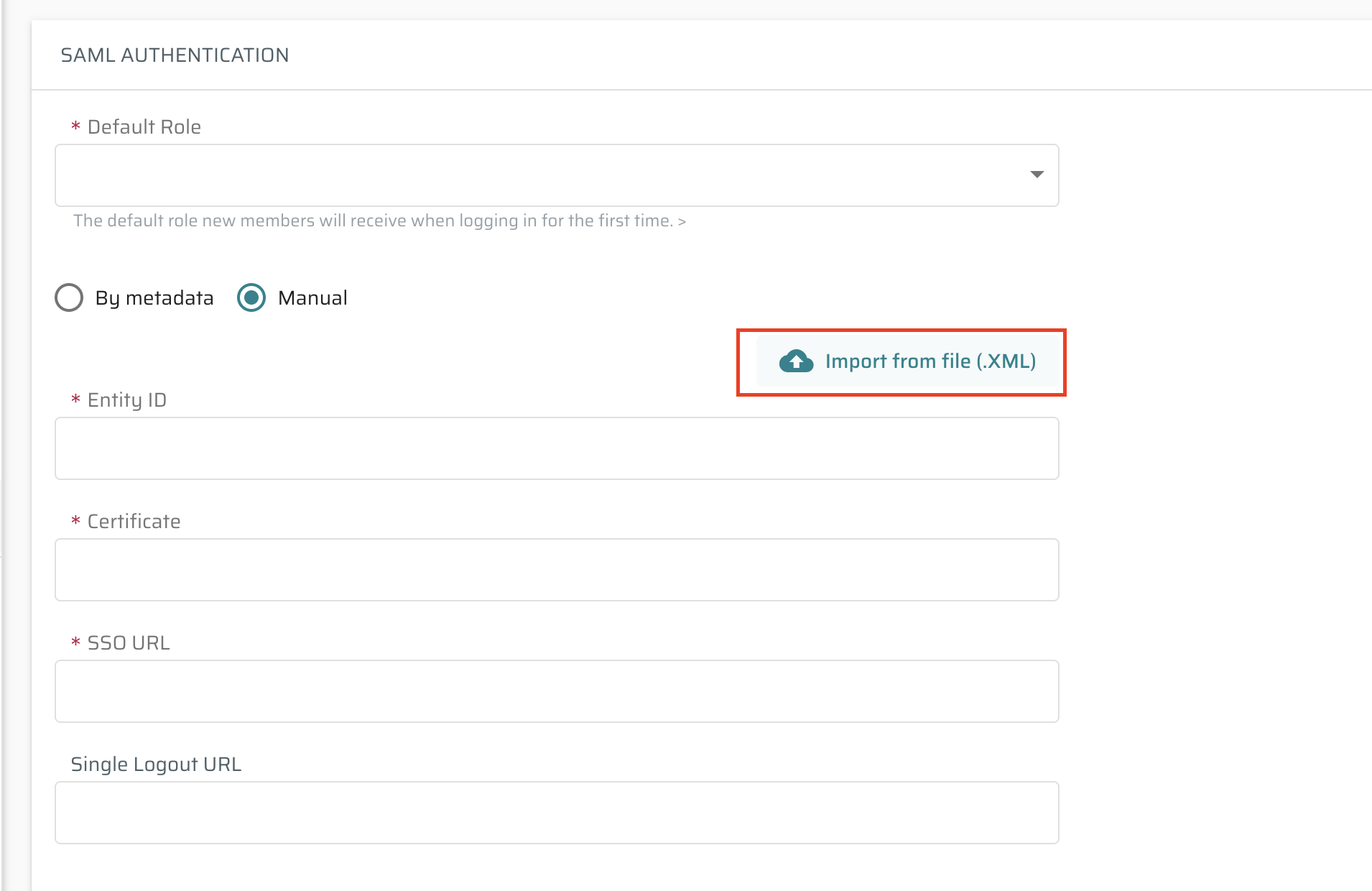
- Select Manual.
- Fill in the Identity Provider details:
| Field | Description |
|---|---|
| Entity ID | Your IdP Entity ID |
| Certificate | Your IdP X.509 signing certificate |
| SSO URL | Your IdP sign-on URL |
| Single Logout URL | Your IdP logout endpoint |
Instead of entering the values manually, click Import from file (.XML) and upload the metadata XML file exported from your Identity Provider. The file can be up to 100 KB. Bright parses the file and automatically fills in all four fields.
Common Settings
Whichever option you choose, also configure the following:
- Default Role - The role that new members receive when logging in to Bright for the first time.
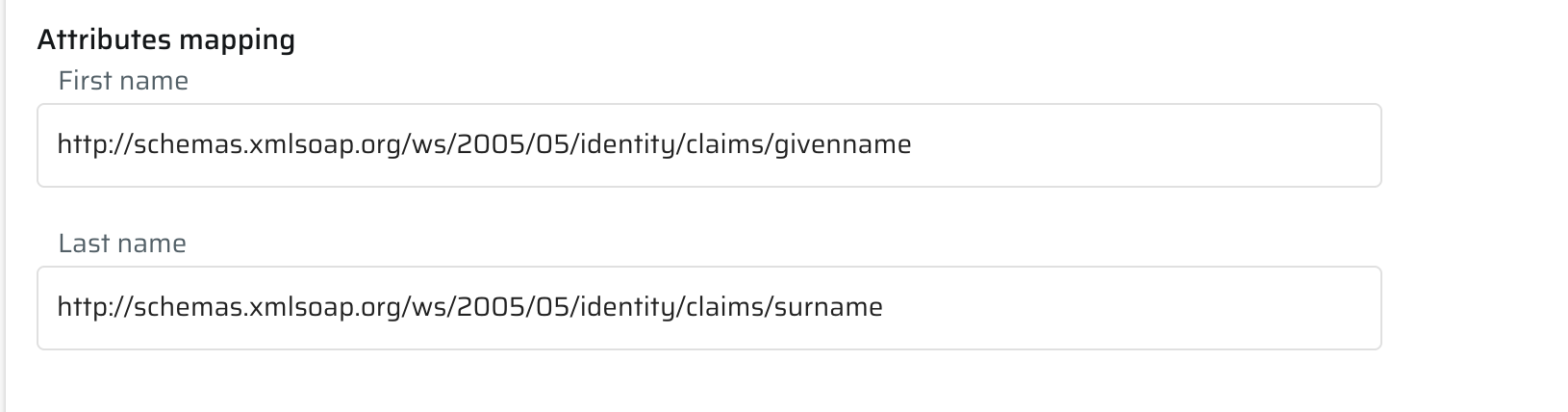
- Custom attributes mapping (optional) - In the Attributes mapping section, specify the attribute names your Identity Provider sends:
- First name - Default:
firstName - Last name - Default:
lastName
- First name - Default:
For example, Azure AD sends its default claims under full URI names. To use them without changing anything on the Azure side, enter:
- First name:
http://schemas.xmlsoap.org/ws/2005/05/identity/claims/givenname - Last name:
http://schemas.xmlsoap.org/ws/2005/05/identity/claims/surname
Leave the fields empty to use the defaults: firstName and lastName.
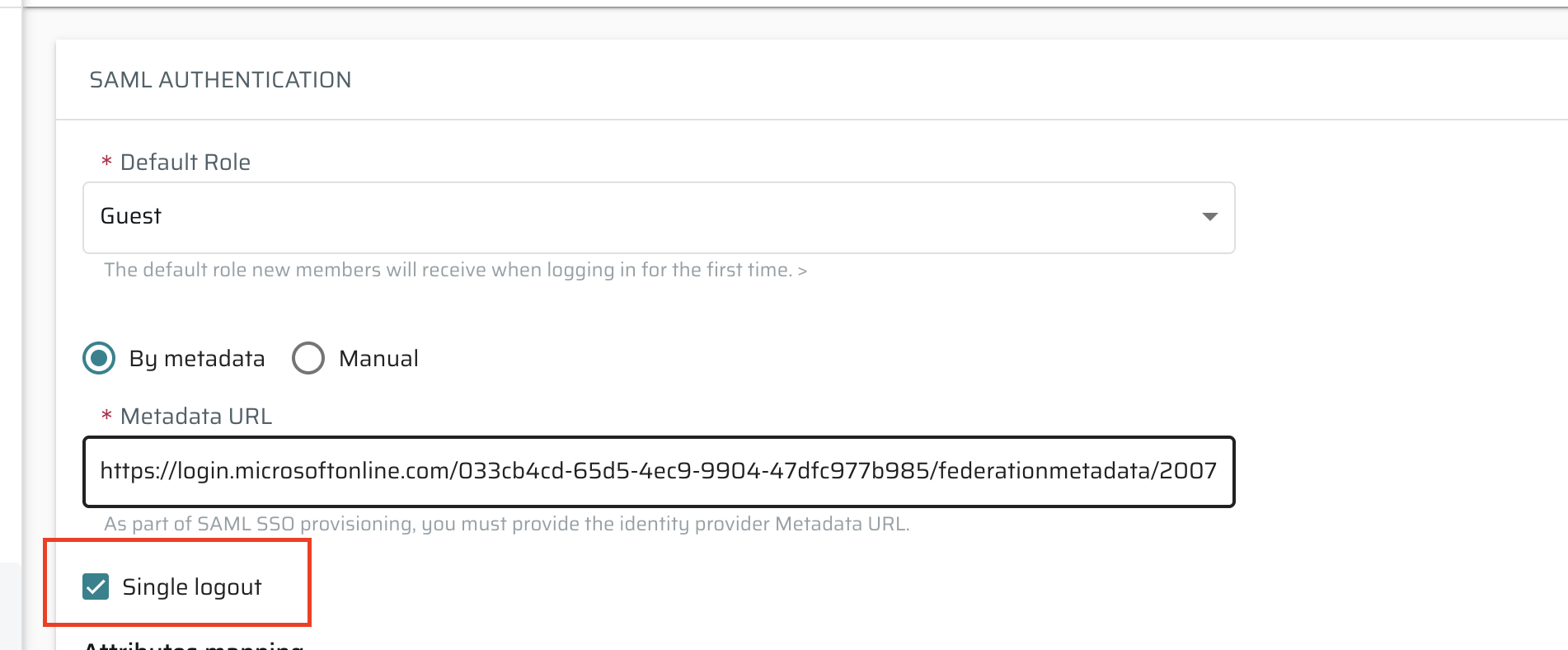
- Single logout (optional) - Select this checkbox to enable Single Logout. When enabled in Manual mode, the Single Logout URL field becomes required.
Click Continue to finish the integration process. You are redirected to your Identity Provider to complete a verification sign-in. This confirms that the configuration works end to end. Once you sign in successfully, the SAML SSO integration becomes active for your organization.
Integration Usage
After the integration process finishes, all settings can be managed from the Settings page.
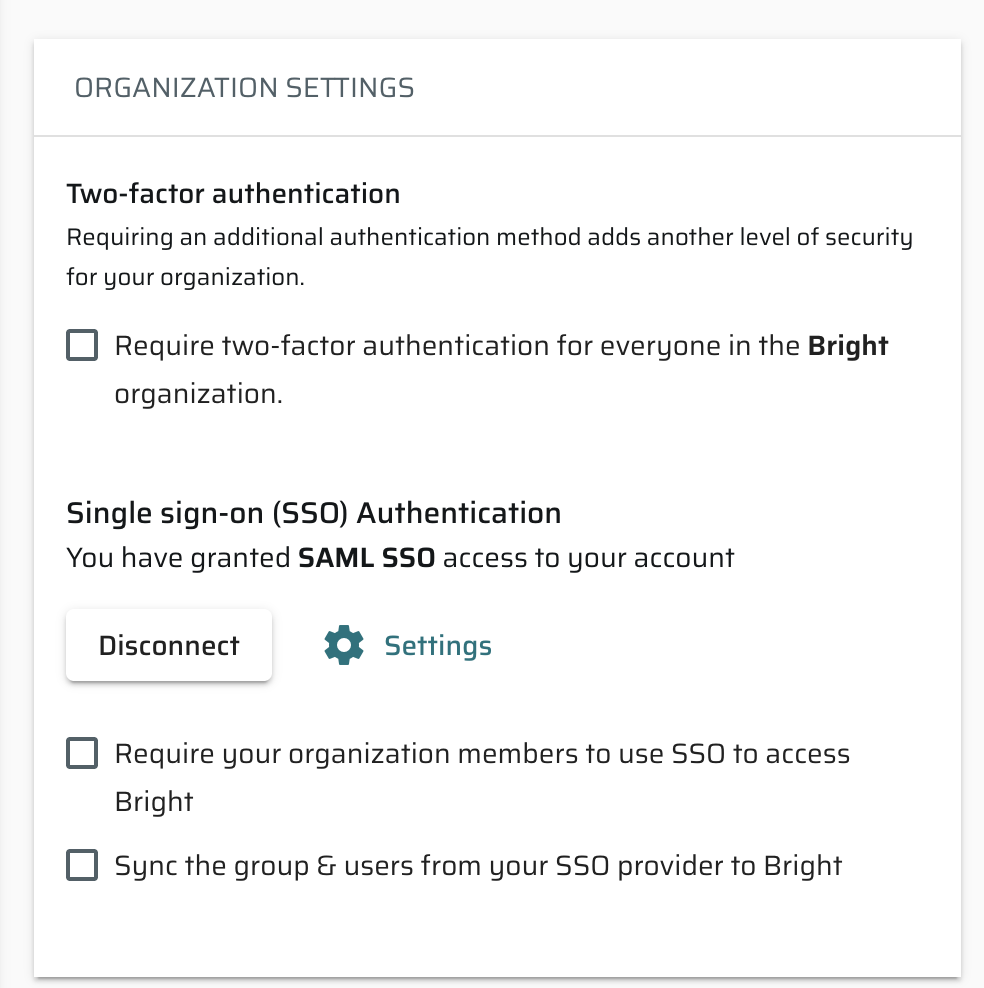
Optionally, you can enforce SSO registration by selecting Require your organization members to use SSO to access Bright. When this option is selected, users can no longer sign in with an email and password. All organization members must sign in through your Identity Provider.
Important: Strict enforcement of SSO for all organization members requires resetting the connection if the SSO integration breaks. If that happens, contact Bright technical support for assistance.
Note: When SSO enforcement is enabled, Bright's built-in multi-factor authentication is disabled for the organization. Multi-factor authentication should be handled by your Identity Provider instead.
User Provisioning
Just-in-Time (JIT) Provisioning
No manual invitations are needed. When a user assigned to the SAML application on the IdP side signs in to Bright for the first time, Bright creates an account for them automatically:
- The user's email and identity are taken from the SAML NameID.
- The first and last name are taken from the mapped attributes.
- The new member receives the Default Role configured on the SAML authentication page.
- The new member is added to your organization's default group.
SCIM Provisioning
System for Cross-domain Identity Management (SCIM) is a protocol for user management across multiple applications. It allows you to provision, deprovision, and update user data across multiple applications.
If your Identity Provider supports SCIM 2.0, you can configure provisioning so users and groups are synchronized automatically from your IdP to your Bright organization:
- In the left pane, select Settings.
- On the Settings page, select Sync the groups & users from your SSO provider to Bright.
- Configure the SCIM integration in your Identity Provider:
- Tenant URL / SCIM base URL:
https://app.brightsec.com/api/v1/scim - For the EU cluster:
https://eu.brightsec.com/api/v1/scim - For another cluster:
https://your-cluster-name.brightsec.com/api/v1/scim - Secret Token: An organization API key with the
scimscope.
- Tenant URL / SCIM base URL:
Synchronized users are added to the Members section, and synchronized groups are added to the Groups section of your Bright organization.
Note: If you deprovision a user from the Bright application on the IdP side, the corresponding member becomes inactive in your Bright organization and can no longer log in to Bright using SSO.
For provider-specific SCIM walkthroughs, see:
- Azure AD: Service Provider-initiated SSO and Provisioning
- Okta SSO and Provisioning
Single Logout (SLO)
Single Logout signs users out of both Bright and your Identity Provider, so one logout action ends the session everywhere.
To enable it:
- Make sure your Identity Provider supports SAML Single Logout and that its Single Logout URL is configured in Bright. Bright reads it from the IdP metadata automatically, or you can enter it manually.
- Provide the Bright Single logout service URL to your Identity Provider. It is included in the exported
metadata.xml. - On the SAML authentication page, select the Single logout checkbox and save the settings.
How It Works
- Logout started from Bright: When a user who signed in with SSO logs out of Bright, Bright sends a signed SAML LogoutRequest to your Identity Provider's Single Logout URL. The IdP ends the user's session and, depending on the IdP, the sessions in other connected applications. It then sends a LogoutResponse back to Bright.
- Logout started from your Identity Provider: When the IdP sends a LogoutRequest to the Bright Single logout service URL, Bright identifies the user by the NameID in the request, revokes all their Bright sessions and tokens, and confirms the logout to the IdP.
Note: Single Logout is available only when users sign in through SAML SSO. If the Single logout checkbox is not selected, logging out of Bright ends the Bright session only.
User Login Flow
Sign In from Bright
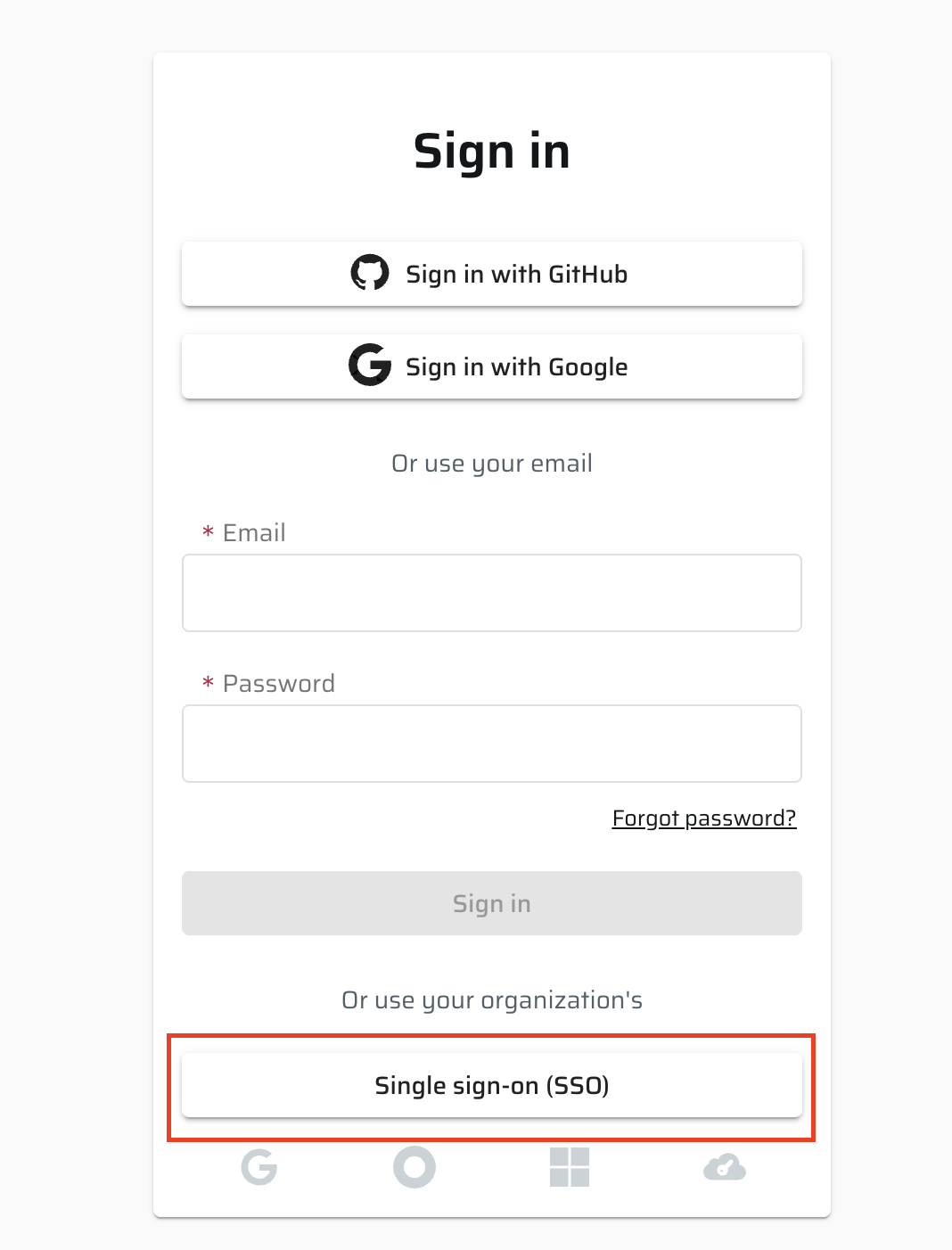
- On the login page, click Single Sign On (SSO).
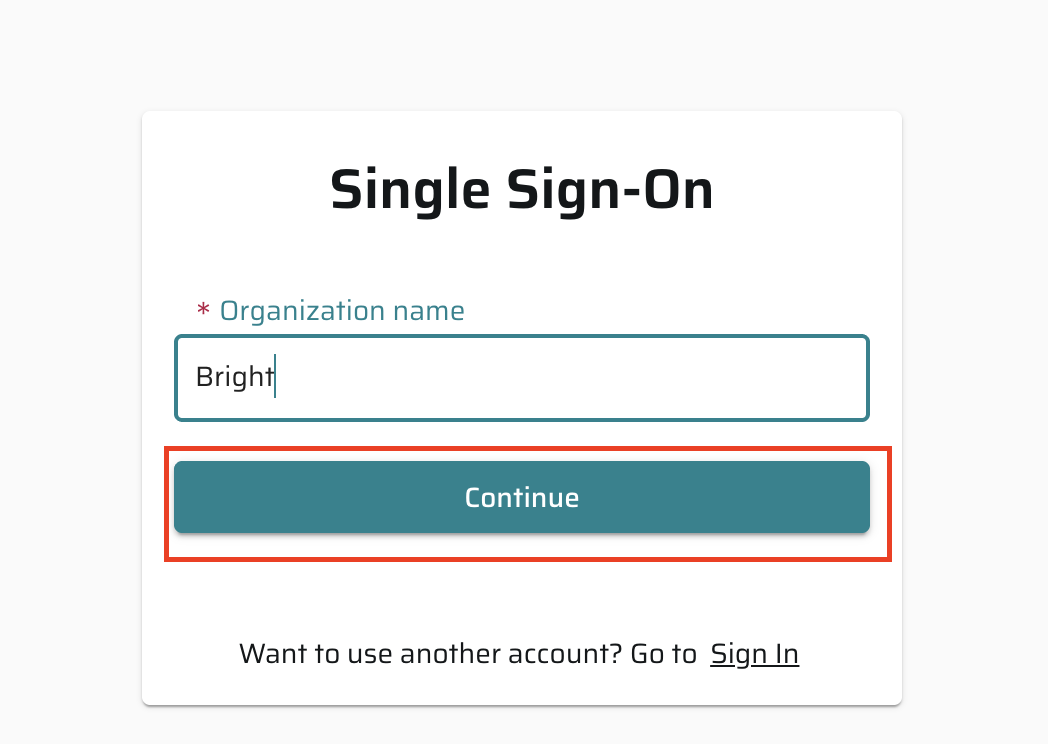
- Enter the name of the Bright organization for which SAML SSO was enabled, and then click Continue.
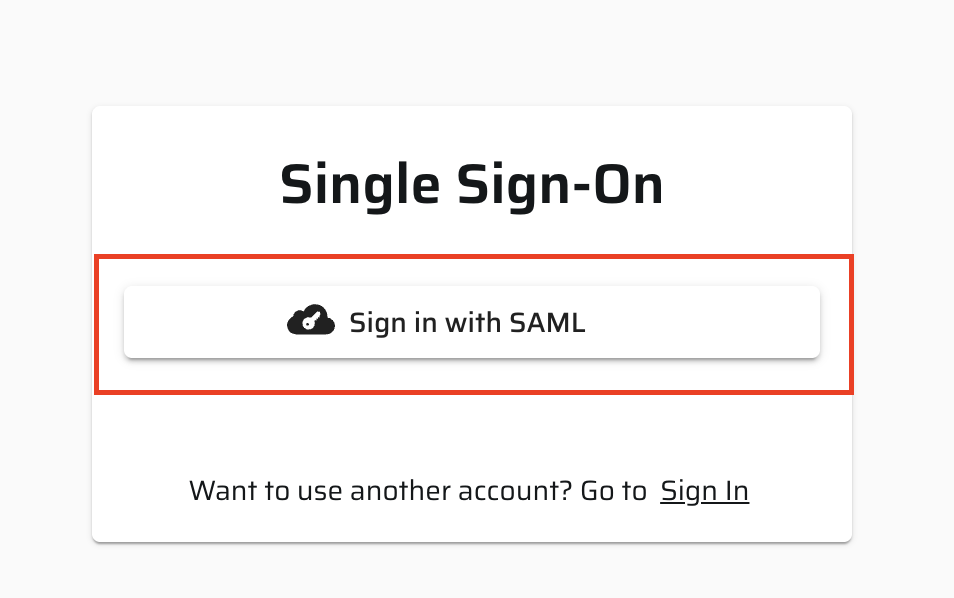
- Click Sign in with SAML.
- You are redirected to your Identity Provider's login page.
- Enter your Identity Provider credentials. After signing in, you are redirected back to Bright.
Sign In from Your Identity Provider
After SAML is configured, users can also sign in directly from their Identity Provider portal, such as Azure My Apps or the Okta dashboard:
- Open your Identity Provider portal.
- Click the Bright application.
- You are signed in automatically.
FAQ
Can I configure multiple Identity Providers?
No. Each organization supports a single SSO configuration.
What happens when I enable "Require your organization members to use SSO to access Bright"?
All users must sign in through your Identity Provider. Users who are not available in the IdP will not be able to access Bright.
Is SCIM required?
No. You can rely on Just-in-Time provisioning or invite users manually. SCIM is optional and provides automatic user and group synchronization. It works with any SCIM 2.0-capable Identity Provider, including Azure AD and Okta.
Updated 3 months ago