

Configure Bright MCP in VSCode
How to configure the Bright MCP in VSCode
-
Enable MCP in VSCode if you haven't done so before: chat.mcp.gallery.enabled
-
Run the MCP: Add Server command from the Command Palette, provide the server information, and then select Global to add the server configuration to your profile.
Alternatively, run the mcp and run the User Configuration command, which opens the mcp.json file in your user profile. You can then manuallyadd the server configuration to the file.
The configurations needed for Bright's MCP are as follows:
{
  "servers": {
    "brightsec.com": {
      "type": "http",
      "url": "https://app.brightsec.com/mcp", // note to change host based on your cluster
      "headers": {
        "Authorization": "Api-Key ${input:apiKey}"
      }
    }
  },
  "inputs": [
    {
      "type": "promptString",
      "id": "apiKey",
      "description": "Enter your Bright API Key",
      "password": true
    }
  ]
}
-
Create a dedicated Bright API key to use for the MCP server Personal API Key Scopes, this can be either a personal, project, or organization-level key, as long as it has the relevant scope.
-
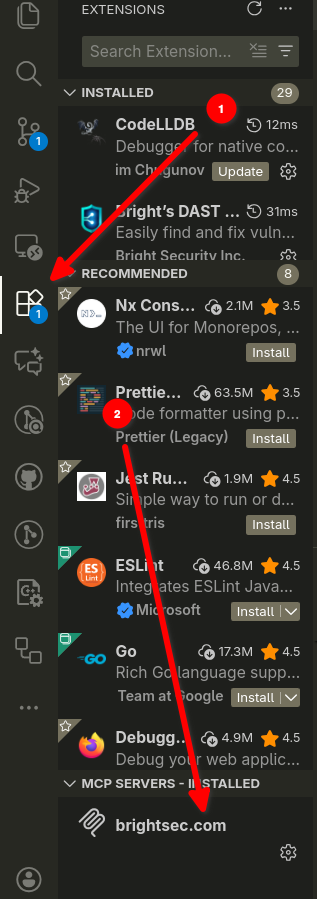
Go to the Extensions tab in VSCode, and right-click on the new "brightsec.com" MCP server that was added, and choose: "Start Server". This is where you will be prompted to insert your API-Key valueat the top bar.
-
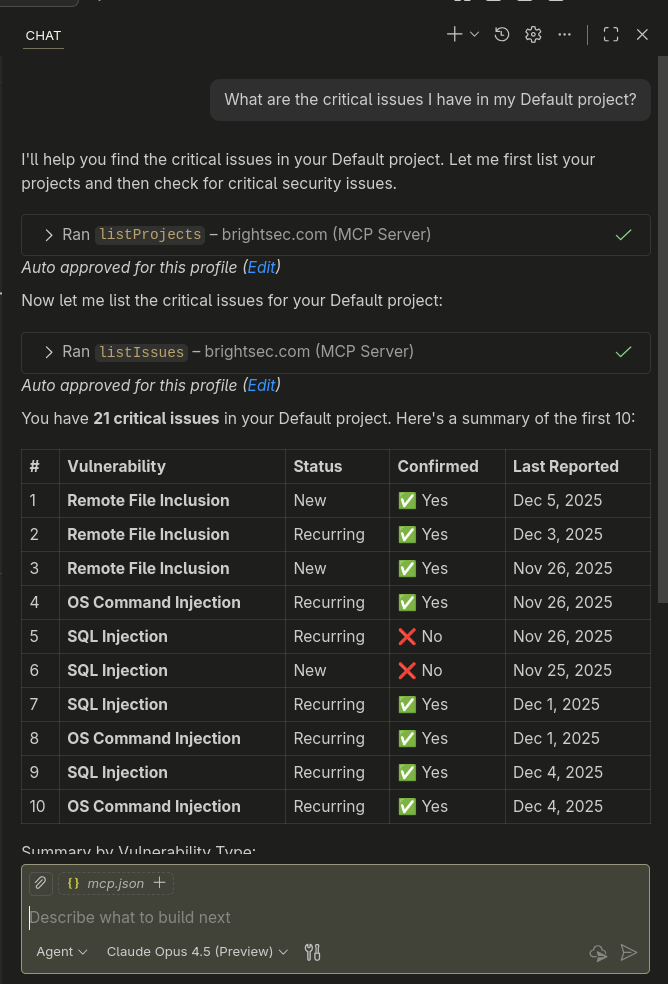
Now your LLM should have access to the Bright MCP and tools.
Usage Examples
Example 1: Scan a Website
Ask your AI assistant:"Scan https://brokencrystals.com for security vulnerabilities.`
The assistant will:
- List your projects to find the appropriate one (e.g. Broken Crystals)
- Get all discovered entrypoints for the project, but no more than currently allowed limit
- Run a security scan against the specified entrypoints
- Monitor the scan status
Example 2: Discover endpoints from OpenAPI Spec served by Local Application
Ask your AI assistant: "Discover API endpoints from the OpenAPI spec at http://localhost:3000/openapi.json"
The assistant will:
- Upload the OpenAPI file
- Run file-based discovery
- Monitor the discovery status
Example 3: Scan Local Application
Ask your AI assistant: "Scan my local application at http://localhost:3000"
The assistant will:
- Check if Bright CLI is installed
- List your projects to find the appropriate one (e.g. Broken Crystals)
- Create a repeater if needed in the project
- Get all discovered entrypoints for the project, but no more than currently allowed limit
- Run a security scan against the specified entrypoints using the repeater
- Monitor the scan status
Updated about 1 month ago