

Support for Applications with Single-Tab Session Restriction
What is Single-Tab Scan Mode?
Some applications allow only one active browser tab or session at a time.
If multiple requests are sent in parallel, the application may log out the user, invalidate the session, block further requests, or cause the scan to fail.
Single-Tab Scan Mode allows Bright to scan these applications safely. When enabled, Bright runs the scan sequentially instead of in parallel, helping maintain session stability.
When Should You Use It?
Enable Single-Tab Scan Mode if:
- Your application logs out during scanning
- Authentication breaks during a scan
- The scan fails after login
- Your application supports only one active session
If your application works normally during scans, you do not need this mode.
How to Enable It
You can enable Single-Tab Scan Mode at two levels.
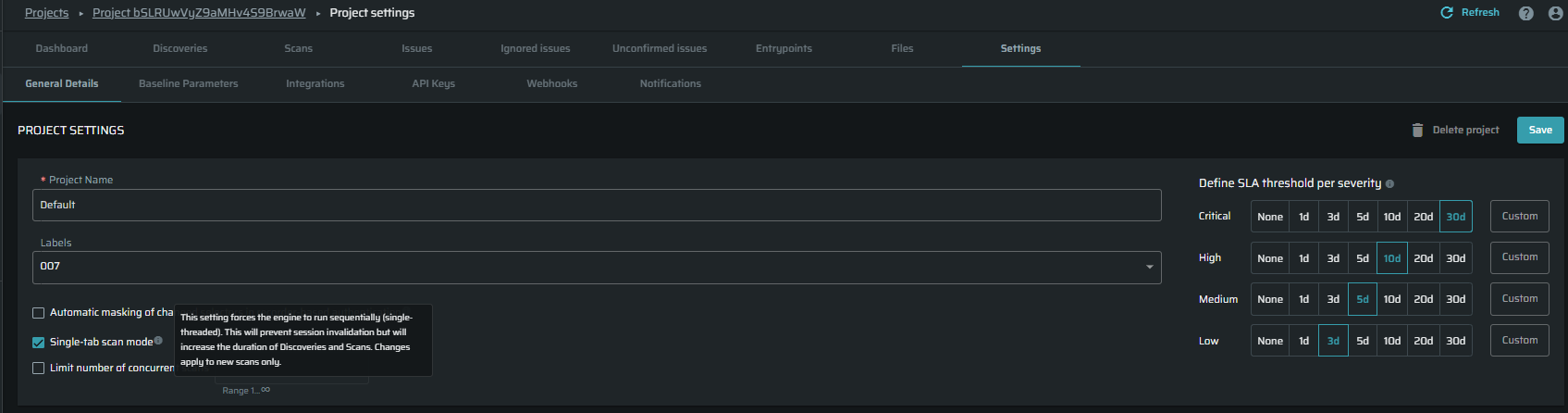
Option 1 - Project Level (Recommended)
Use this if your application always requires single-tab execution.
Go to:
Project → Settings → General Details → Project Settings
Enable:
Single-Tab Scan Mode
This will apply to all new scans and discoveries in the project.
Option 2 - Per Scan / Discovery
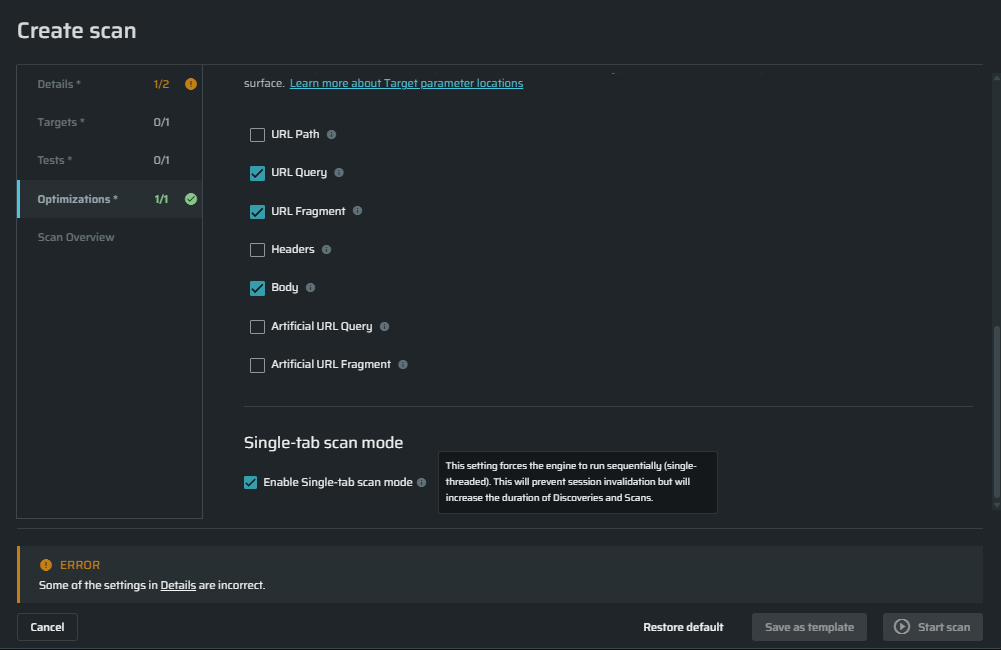
Use this if only specific scans require single-tab execution.
Go to:
Scan or Discovery Configuration → Optimization tab
Enable:
Single-Tab Scan Mode
This setting applies only to that specific execution.
What Changes When It Is Enabled?
When Single-Tab Scan Mode is enabled, the scan runs sequentially. Only one request is processed at a time, which helps maintain a stable session.
Because requests are not processed in parallel, scan duration may increase.
This mode improves stability at the cost of longer scan time.
Important Notes
- The setting affects new scans only.
- It does not change scans that are already running.
- Enabling this mode increases scan duration.
- If enabled at the project level and later disabled in a specific scan configuration, the scan-level setting overrides the project configuration.
Updated 8 months ago