

OTP Configuration
One-time passwords (OTP) add a short-lived code to the authentication flow, on top of a regular password. Bright supports Time-Based One-Time Password (TOTP), Hash-Based One-Time Password (HOTP), Google Authenticator (TOTP), Email OTP and SMS OTP.
NoteOTPs are only available for Recorded Browser-Based Form Authentication, Manual Browser-Based Form Authentication and Custom API authentication flow.
- You can create up to 5 OTPs on one authentication object.
- There is no restriction on types: for example, all 5 can be the same type.
- You can rename each OTP.
Add an OTP
-
Create an authentication object using Recorded Browser-Based Form Authentication, Manual Browser-Based Form Authentication or Custom API authentication flow.
-
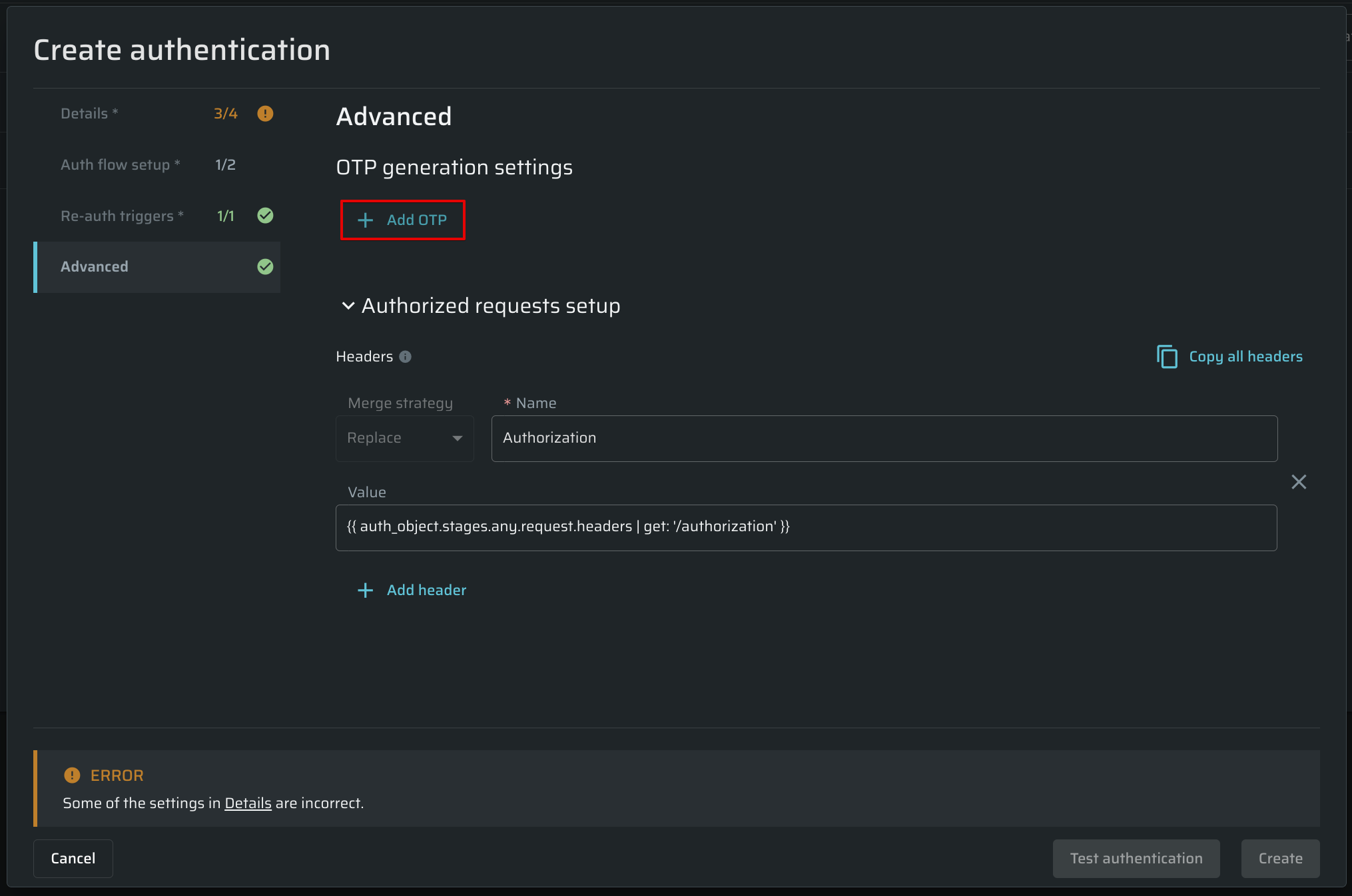
Go to the Advanced Settings tab and click Add OTP.
-
Enter a Name for the OTP. Use alphanumeric characters and the underscore (
_) only. -
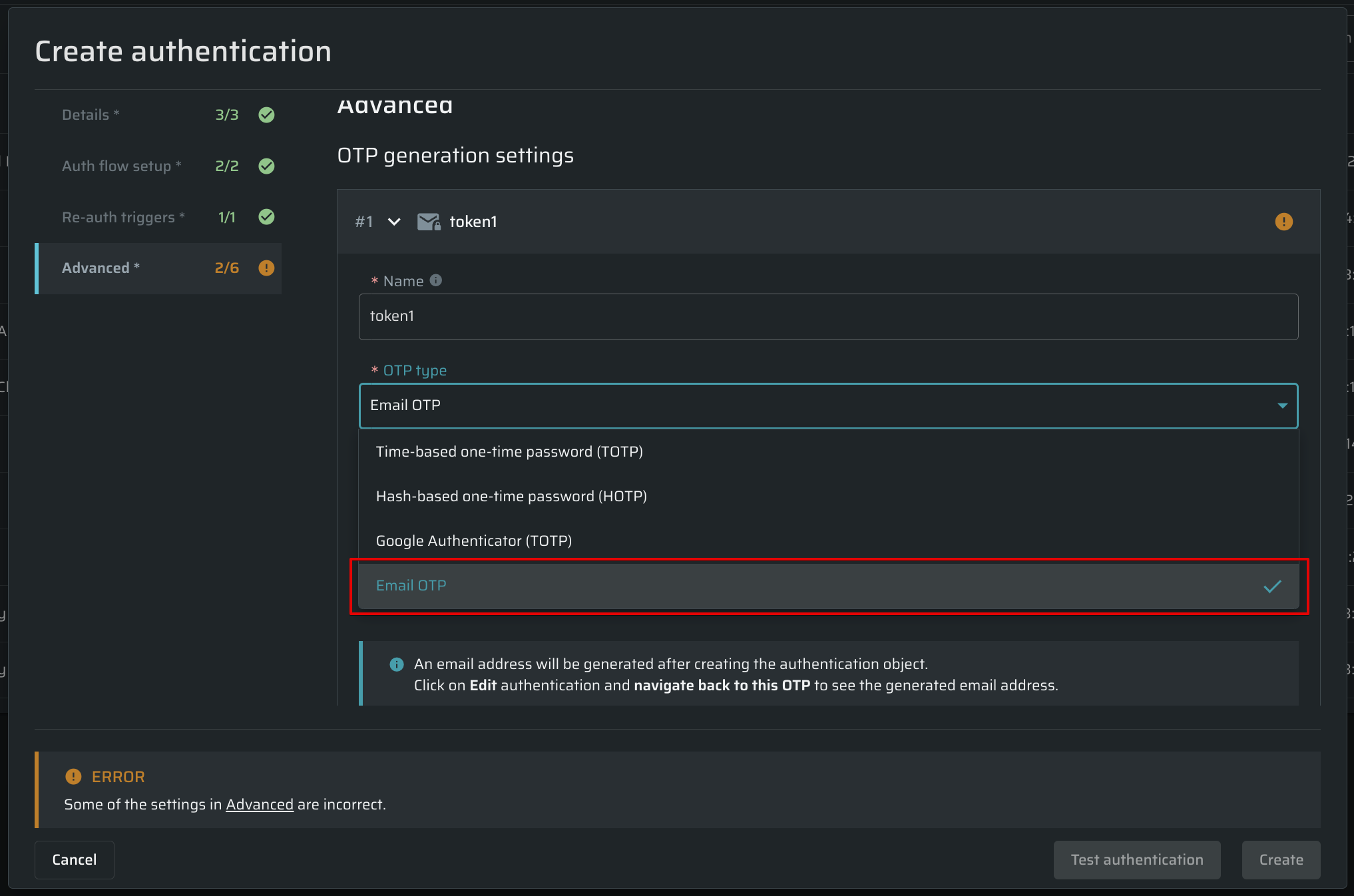
Select the OTP type: Time-Based One-Time Password (TOTP), Hash-Based One-Time Password (HOTP), Google Authenticator (TOTP), Email OTP or SMS OTP.
-
Fill in the fields for the type you selected. See Time-Based, Hash-Based and Google Authenticator OTP, Email OTP or SMS OTP below.
-
Click Create.
To add another OTP to the same authentication object, click Add OTP again.
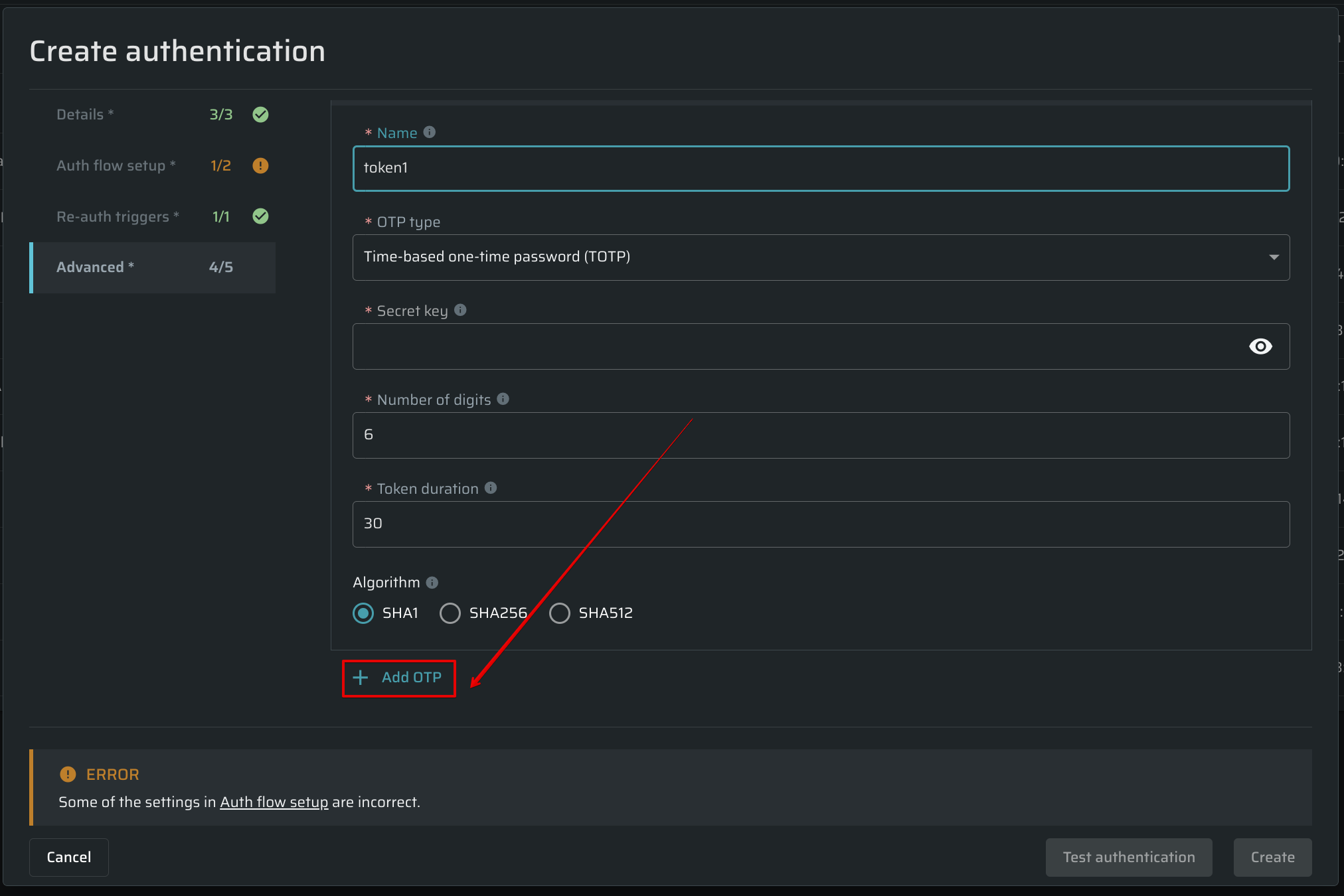
Time-Based, Hash-Based and Google Authenticator OTP
-
Secret key - a key that is provided by the target website and used to generate the OTP.
-
Number of digits - the number of digits (from 1 to 8) used to generate the OTP's length.
-
Token duration - a time (in seconds) after which an OTP is regenerated (only available when TOTP is selected).
-
Algorithm - an encryption algorithm, that contains three types of the cryptographic hash function, which produces a 160-bit, 256-bit, and 512-bit hash value accordingly.
Once everything is done, click Test OTP generation to check everything is set up correctly. Generated code can be used for OTP adjustment on a target site/service.
Email OTP
Email OTP is a temporary password sent to a generated email address used by Bright to authenticate to applications. Bright provides an email address that cannot be customized. Emails are automatically deleted after 7 days.
To use it:
- Use the email address provided by the Bright web app.
- Set this email as the test user's email.
NoteIf you can't use the provided email due to restrictions, set up forwarding from your local email to the Bright-provided address.
Fill in the following fields:
- Subject regex - use your subject from the email, for example:
Your OTP code. - Body OTP regex - this parameter controls where the Bright engine will find the code in the email. Use a capturing group to locate a code in the email. For example, here's the regex for a 6-digit code:
(\d{6}). The search is first done in the plain-text body and then in HTML.
NoteYou won't be able to get an email address without creating the authentication object. Click Create to proceed, then edit the authentication object to see the assigned email address.
To see the assigned email address, edit the authentication object, go back to the Advanced Settings tab and expand the OTP you are setting.
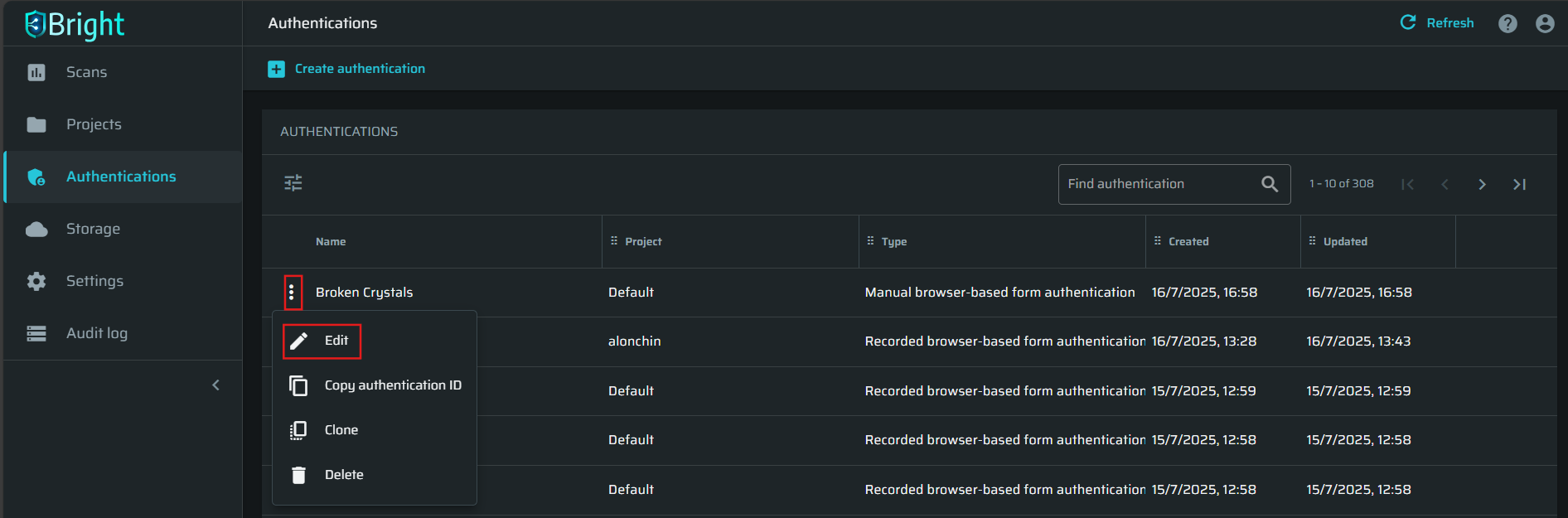
Note: This email address is generated automatically and is not customizable.
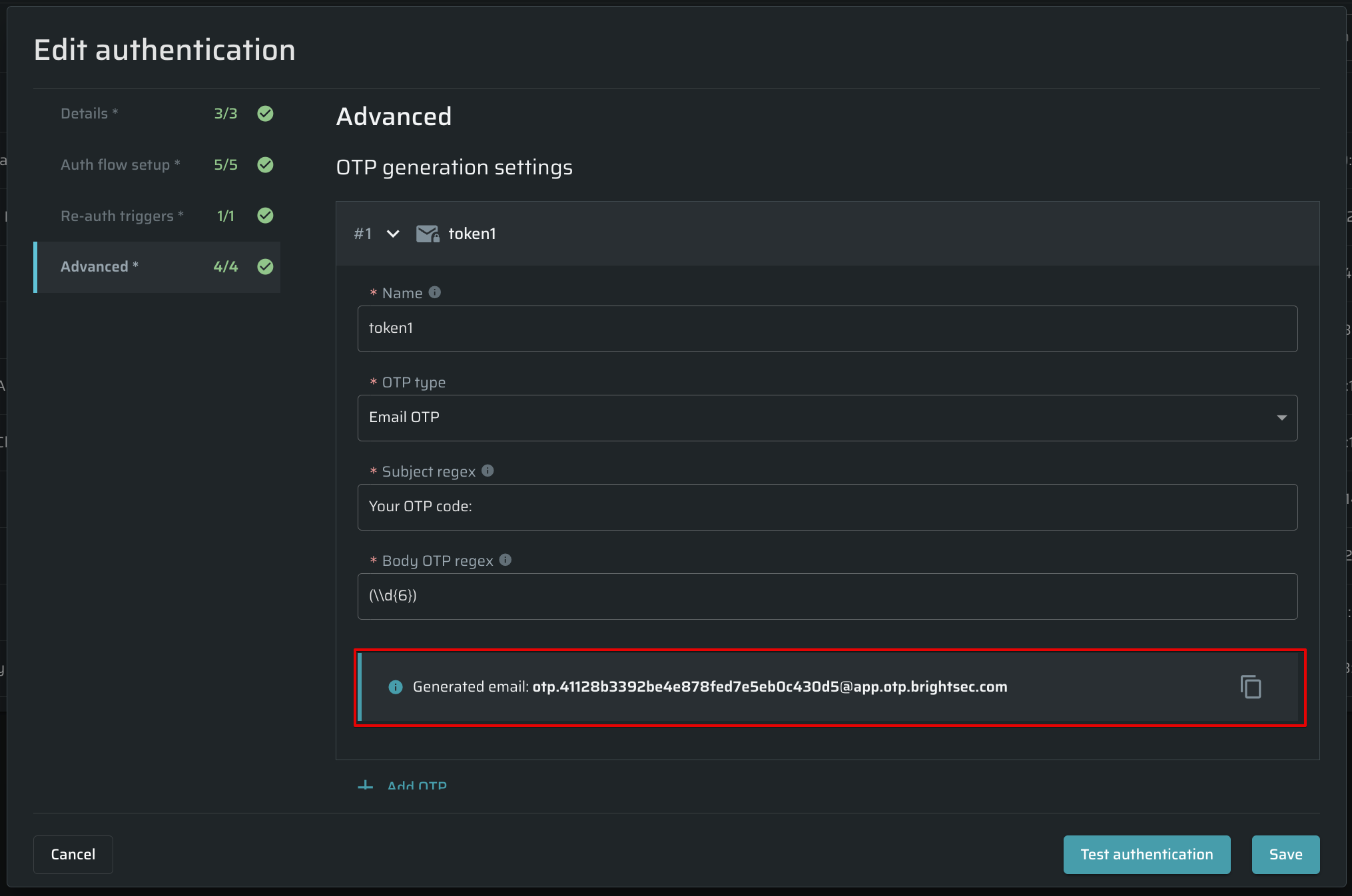
NoteIf you want to clone the authentication object with Email OTP, save it before testing. Otherwise, a new email address won't be generated.
SMS OTP
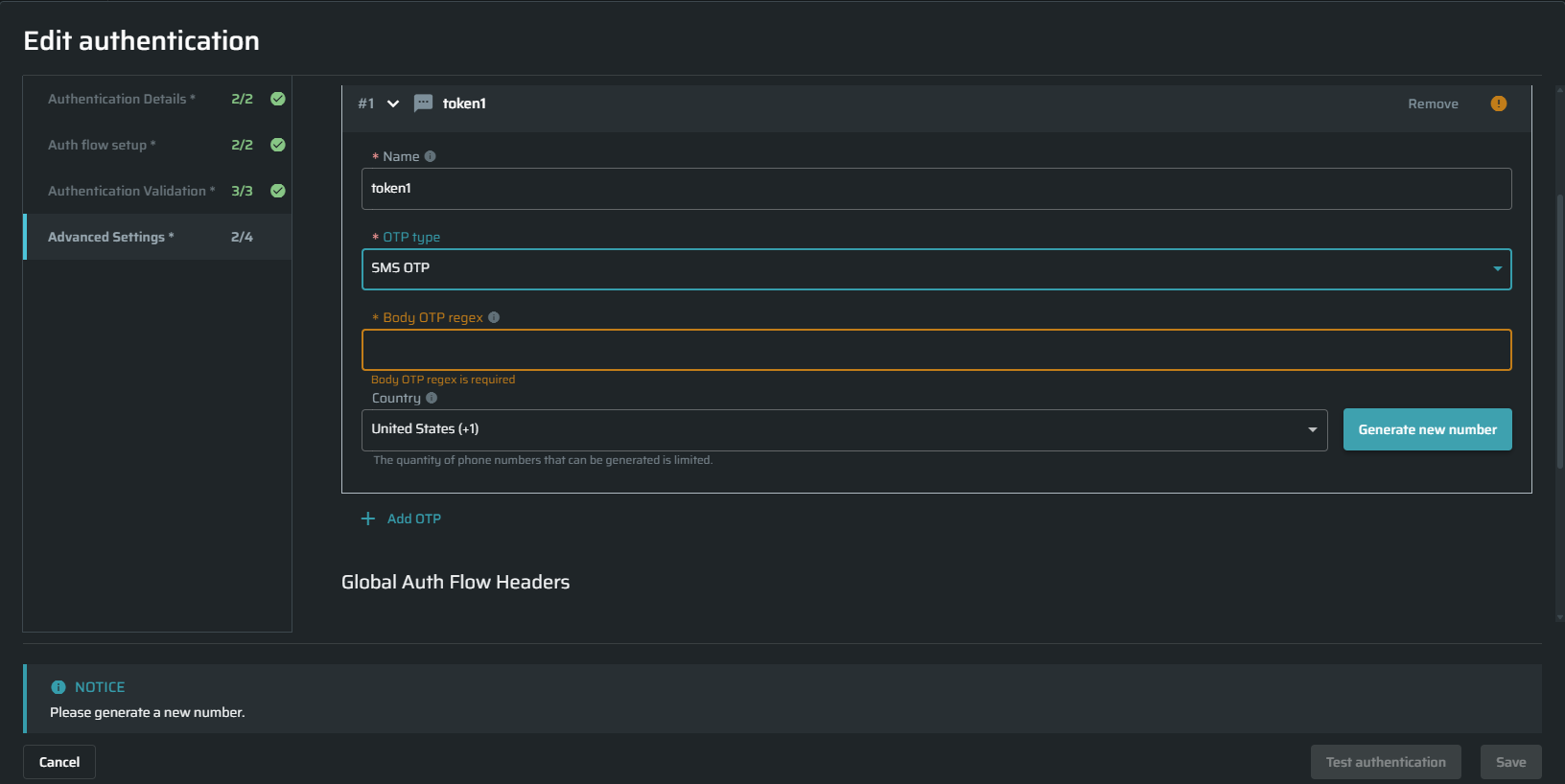
Bright supports authentication flows that receive one-time passwords through SMS. When configuring SMS OTP, Bright assigns a phone number that the target application can use to send verification codes.
Before You Begin
Make sure you have permission to manage authentication objects.
SMS OTP phone numbers are limited and assigned based on availability.
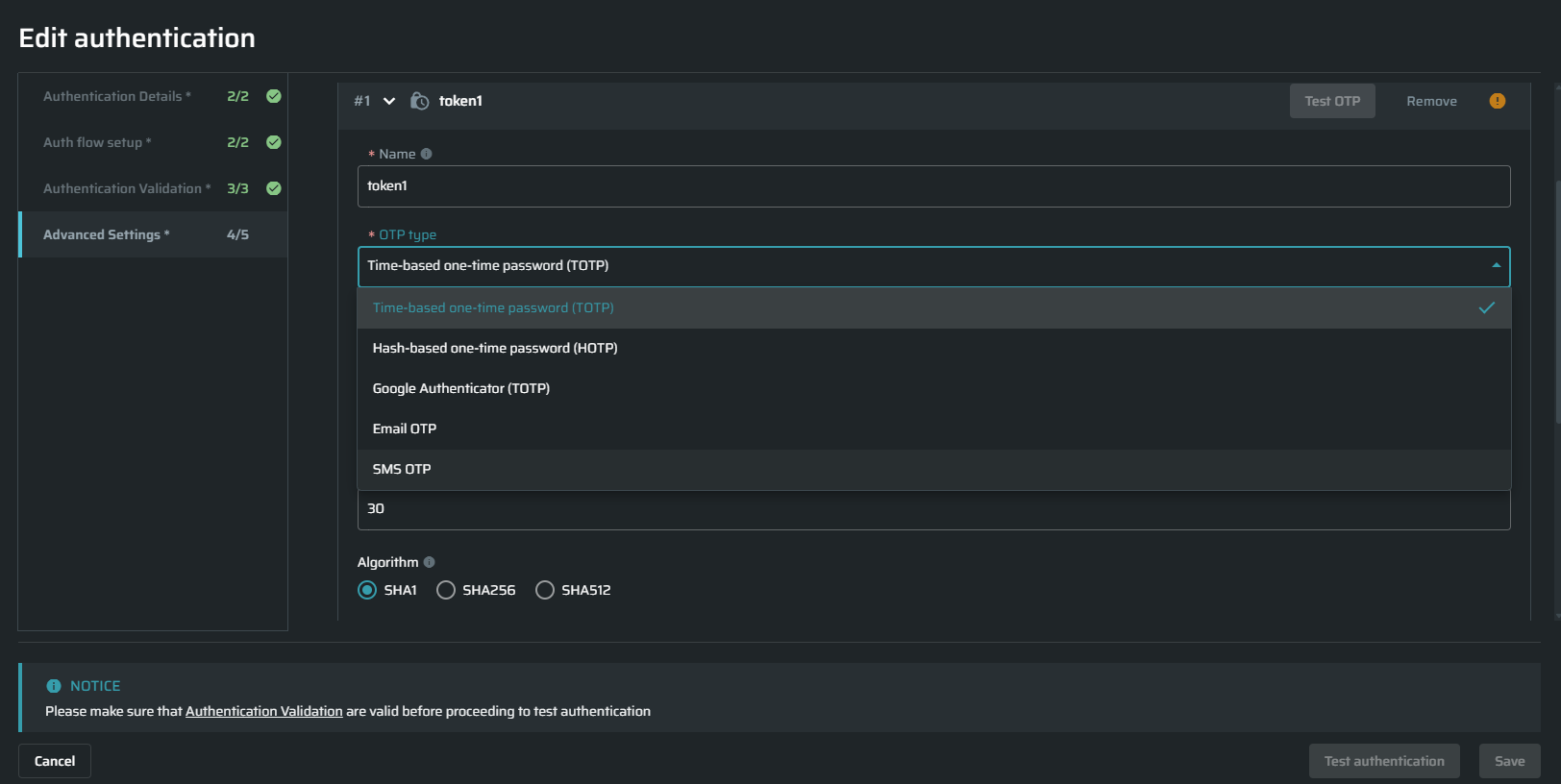
Configure SMS OTP
- Create or edit an authentication object.
- Go to Advanced Settings and add an OTP step.
- In OTP type, select SMS OTP.
- In Body OTP regex, enter the regular expression Bright should use to extract the verification code from the SMS message.
- Under Country, select the required country code.
- Click Generate new number.
- Add the assigned number to the target application as the user's verification number.
- Complete the remaining authentication settings.
- Test the authentication and click Save.
The assigned phone number remains visible in the authentication object.
Note: If Bright cannot assign a number, try again later or select another supported country.
Usage Limitations
The same SMS verification cannot be used by multiple scans or discoveries at the same time. If the authentication object is already in use, wait for the active operation to finish before starting another one.
Delete an SMS OTP Authentication Object
When you delete an unused SMS-based authentication object, its assigned phone number is released. The confirmation message displays the number being released.
The number may be returned to the provider and reassigned later. Make sure it is no longer connected to an active account before deleting the authentication object.
Use the OTP Value in Auth Flow Setup
This section applies to Time-Based, Hash-Based, Google Authenticator and Email OTP.
Open the Auth flow setup tab and insert the {{ auth_object.otps.<OTP_NAME> }} placeholder to all places needed. The Bright engine interprets this placeholder as the generated token.
-
You can add this token to the following fields:
- URL
- Body
- Header Value
-
For Manual Browser-Based Form Authentication, put
{{ auth_object.otps.<OTP_NAME> }}into the Value field. The Name field should match the field's selector name.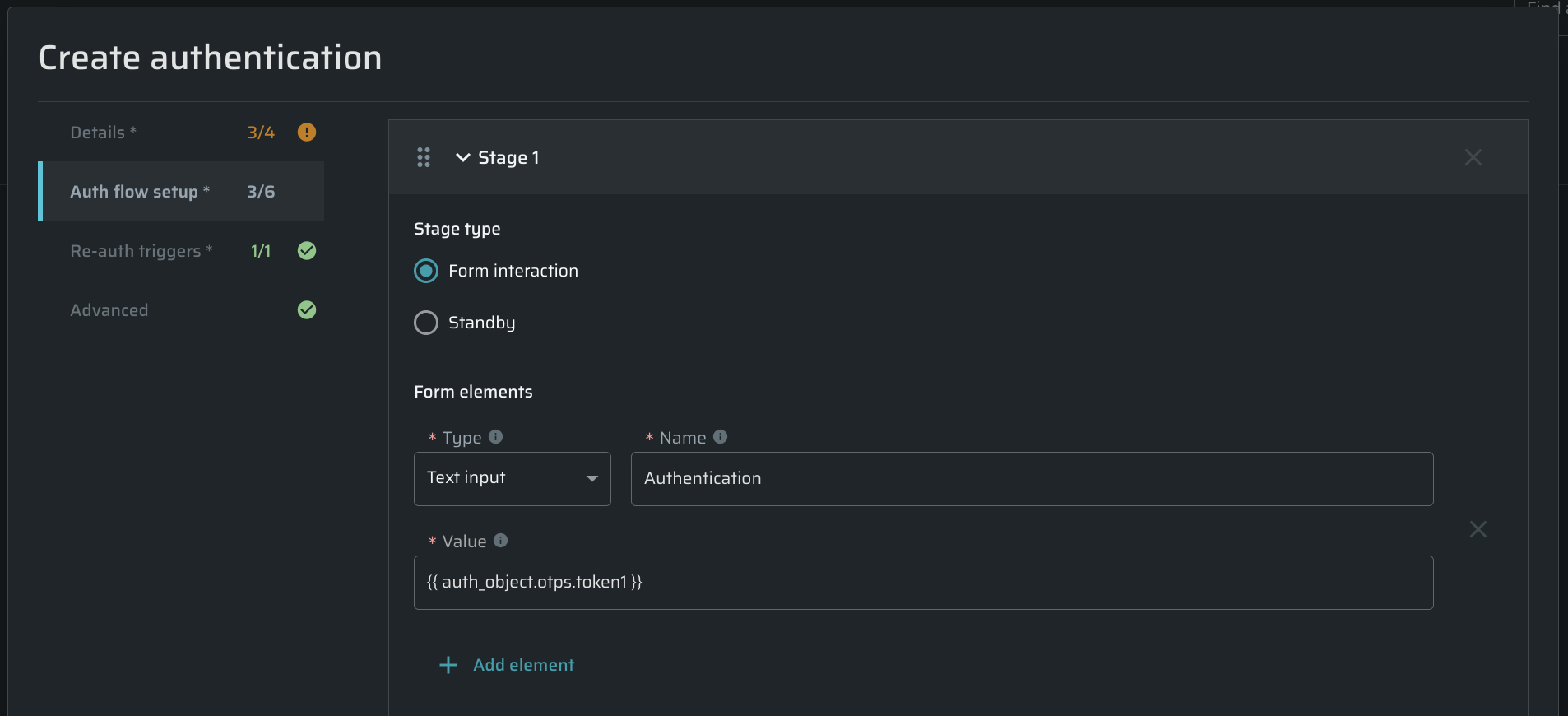
-
For Recorded Browser-Based Form Authentication, open the recorded JSON file in a text editor, and change the data in the value line to this:
{{ auth_object.otps.<OTP_NAME> }}, or use the built-in recording editor.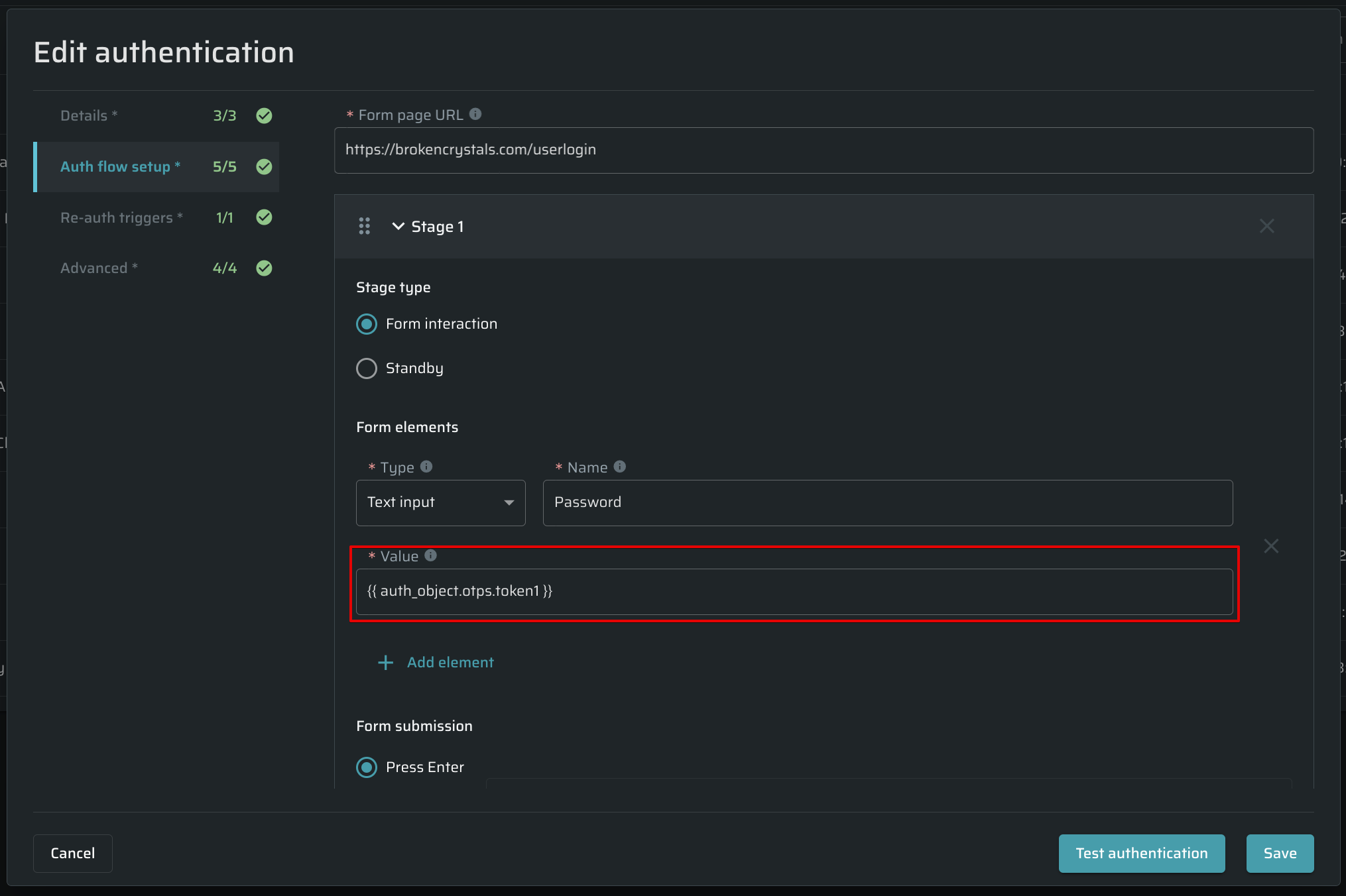
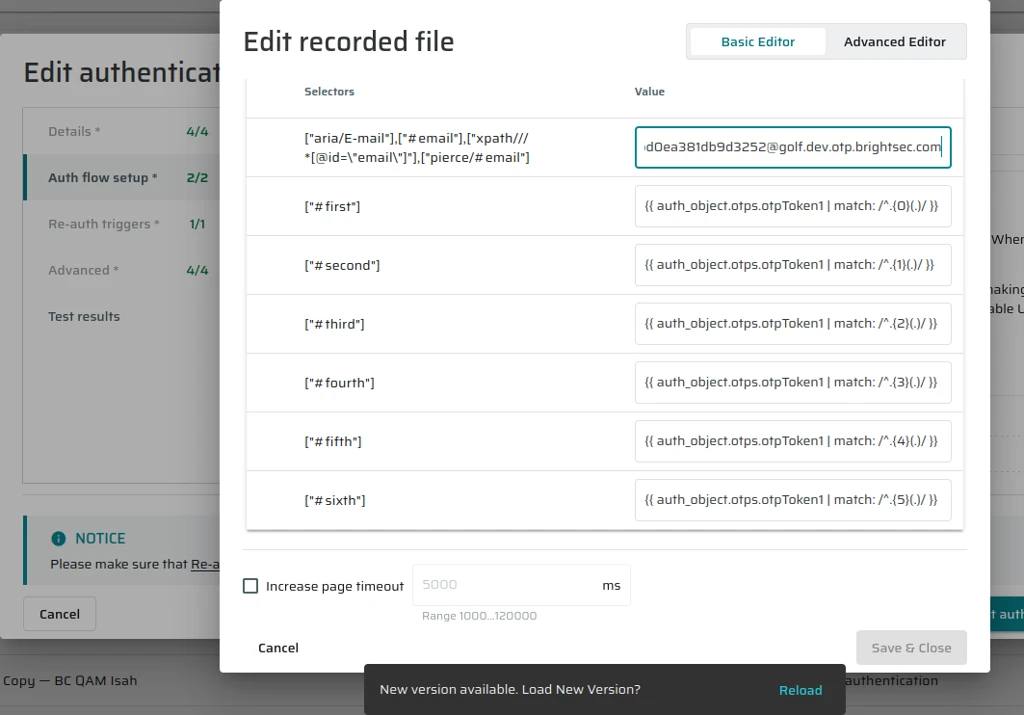
Enter OTP Digits Across Multiple Fields
Some applications require the OTP to be entered one digit per input field, using multiple separate input elements, instead of one field for the whole code.
Use this when:
- The target application displays multiple OTP input fields, for example 6 separate fields.
- Each input field accepts a single digit only.
- You are configuring an authentication object that uses MFA.
To extract a single digit from the OTP, use this template syntax:
{{ auth_object.otps.token1 | match: /^.{N}(.)/ : 1 }}
token1- the OTP token.N- the zero-based index of the digit to extract.match- applies a regular expression to the OTP value.(.)- captures a single character (digit).: 1- returns the first captured group.
Example: a 6-digit OTP
For an OTP value like 839421, map each digit to a separate input field as follows:
| Template | Result |
|---|---|
{{ auth_object.otps.token1 | match: /^.{0}(.)/ : 1 }} | 8 |
{{ auth_object.otps.token1 | match: /^.{1}(.)/ : 1 }} | 3 |
{{ auth_object.otps.token1 | match: /^.{2}(.)/ : 1 }} | 9 |
{{ auth_object.otps.token1 | match: /^.{3}(.)/ : 1 }} | 4 |
{{ auth_object.otps.token1 | match: /^.{4}(.)/ : 1 }} | 2 |
{{ auth_object.otps.token1 | match: /^.{5}(.)/ : 1 }} | 1 |
Updated about 10 hours ago