

Slack

|
|
You can configure the Bright app to automatically send messages about detected issues to your selected Slack channels. Each message is a report which includes the following information:
|
|
For more information about Bright Integration with Slack channels, see BrightSec in the Slack App directory.
Prerequisites
- You have the Slack channel(s) to which Bright can post the scan results.
Step-by-step guide
Connecting Bright to your Slack channel
-
Go to the Bright app.
-
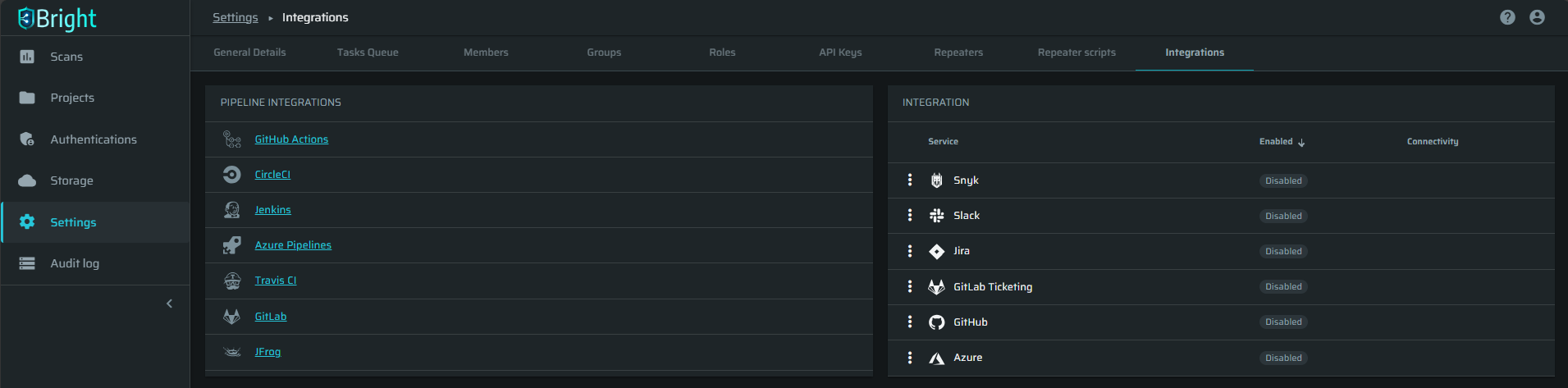
In the left pane, select Settings and navigate to the Integrations tab.
-
Click
 next to Slack, and then select Settings.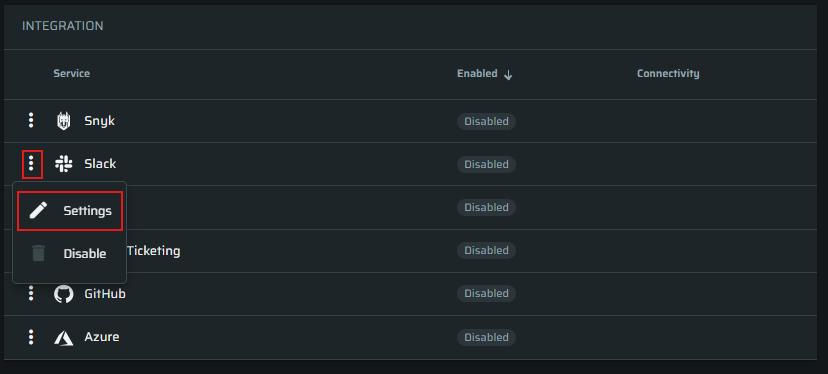
-
In the dialog box, click Activate Slack.
-
On the Slack web page, allow Bright to access your Slack workspace with the specified access scope. For that, click Allow.
-
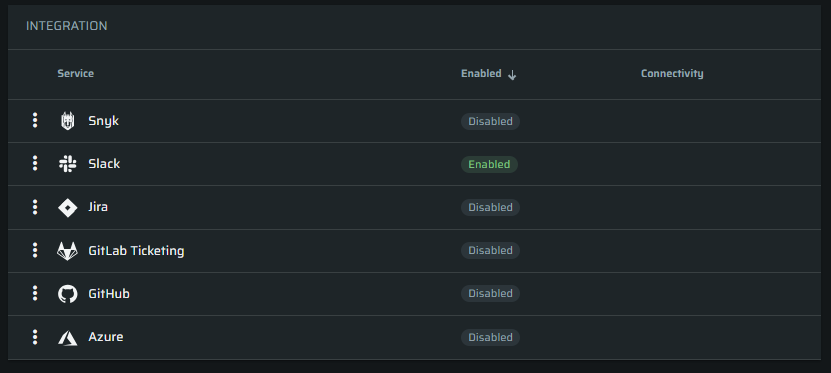
The Bright connection to Slack is enabled.
Configuring Slack integration with Bright projects
After you have connected Bright to Slack, you need to integrate a specific Bright project with your Slack channels. The integration allows Bright to automatically provide the scan reports in the associated Slack channels. You can configure a minimum severity level of issues (findings) to be sent to the associated channels.
To integrate a certain Bright project with your Slack channel(s), follow these steps.
Notification behavior and de-duplication
The Slack integration sends a notification when a new vulnerability is found. If a vulnerability was already reported to a channel, later scans that find it again do not send another notification to that channel. Each channel is tracked separately. Changing a Slack channel from public to private does not affect its ability to receive notifications.
Limitation: You cannot add a private channel to a project directly. To use a private channel, add a public channel to the project and then convert it to private.
For a private channel to receive notifications, add the Bright app to the channel.
Updated 12 days ago