

Bright Optimizer
Bright Optimizer helps users identify opportunities to improve Scan automation, reliability, and configuration.
Instead of manually reviewing large execution tables, users receive focused insights that highlight the Scans requiring attention. Selecting an insight opens the relevant Scan list with the correct filters already applied.
Each insight also includes optimization guidance explaining why it was detected and recommending how to address it, providing a clearer and faster troubleshooting experience.
Available Optimization Insights
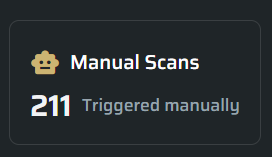
Manual Scans
Identifies Scans that are still triggered manually and could potentially be automated.
Repeated manual execution can create testing gaps, inconsistent coverage, and unnecessary operational work. This insight helps users identify recurring Scans that should be scheduled or moved into an automated Workflow.
Long Running Scans
Identifies Scan executions that have been running for an unusually long time and may require investigation.
Long-running executions may indicate configuration, connectivity, authentication, or application-related issues that prevent a Scan from completing as expected. The insight brings Scans running for more than 7 days into one focused view, helping users identify potentially stuck executions and investigate what may be preventing them from completing.
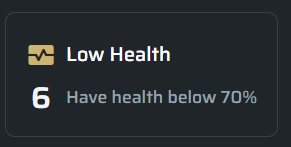
Low Health
Identifies Scans with a health score below the configured threshold.
A completed Scan is not always an effective Scan. A low health score may indicate configuration or execution conditions that reduced the quality of the security test. This insight helps users identify the affected Scans and improve the quality and reliability of future executions.
Optimization Insights on the Project Dashboard
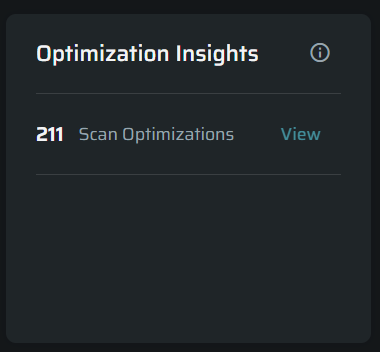
Added an Optimization Insights widget to the Project Dashboard, providing a quick view of how many unique Scans contain optimization opportunities.
A Scan that matches more than one optimization criterion is counted only once, preventing duplicate results and providing a more accurate overview.
Users can select View to open the project's Scans page and investigate the relevant executions. When no opportunities are detected, the widget displays a neutral No opportunities state.
This gives users immediate visibility into potential Scan improvements without requiring them to open and review the full Scans list.
Configurable Optimizer Thresholds
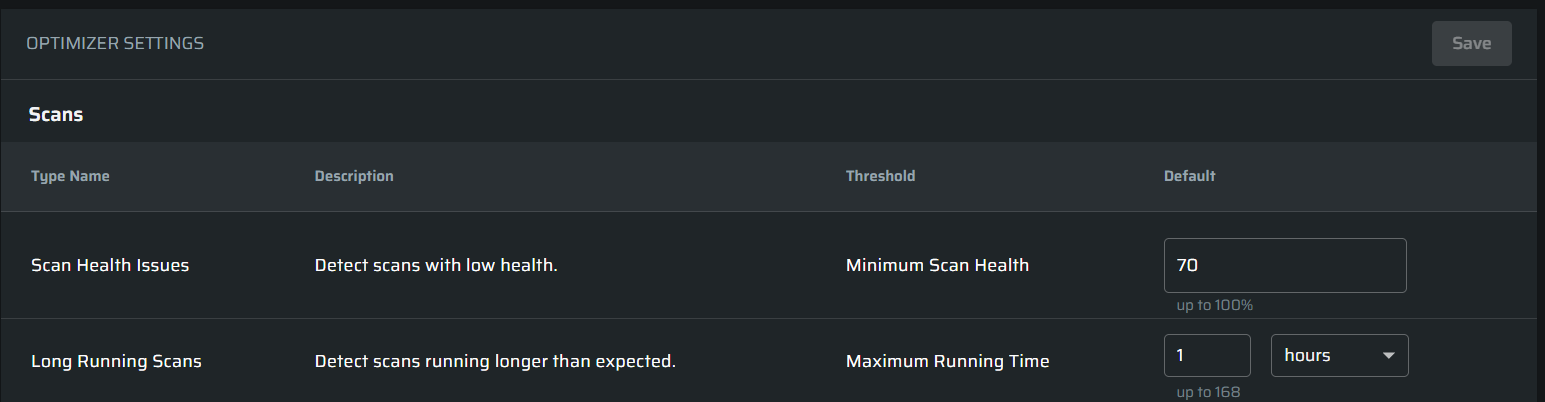
Organization administrators can configure Scan detection thresholds from the new Optimizer Settings section under Organization Settings.
The available settings include:
- Minimum Scan Health: Defines the health score below which a Scan is identified as having low health. The default threshold is 90%.
- Maximum Running Time: Defines how long a Scan can run before it is identified as long-running. The default threshold is seven days.
Users without organization administration permissions can view the configured thresholds in read-only mode.
These settings allow organizations to adjust the Optimizer based on their environments and operational expectations, so the insights focus on the Scans that are most relevant to them.
Updated about 1 month ago